
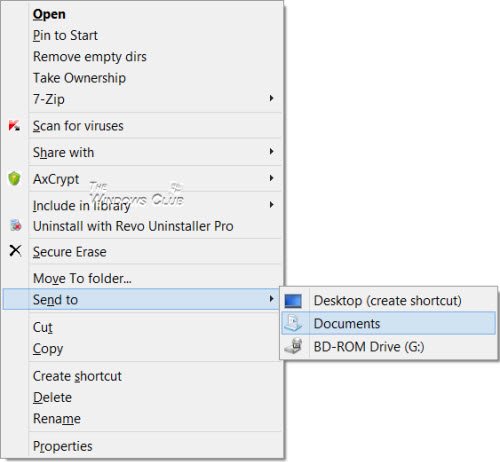
The Send To Menu in Windows lets you send files easily to various destinations. If you like to send your files to a particular destination folder regularly, or if you find that your Windows has added too many places to ‘Send To’ of your right-click context menu, you might just want to add or delete a few items from this Send To menu.
Add items to Send To menu in Windows 11/10
If you wish to add, remove, edit items from Explorer Send To Menu in Windows 11/10/8/7, here is how you can do it.
Copy the following path in your Explorer address bar and click on the Go arrow. Remember to replace <username> with your username.
C:\Users\<username>\AppData\Roaming\Microsoft\Windows\SendTo
You can see here, the contents or destinations where you can Send To.
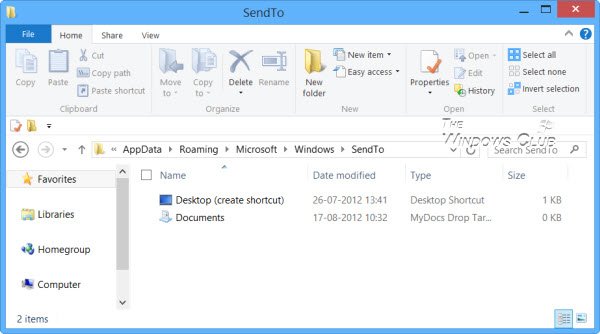
To add items to the Send To menu, you can add the shortcut of any particular folder here. For example, I have a folder D:\Downloads which I frequently use to Send To. So, I open D Drive, right-click in this folder, and select Create Shortcut, then cut-paste this shortcut in this SendTo folder.
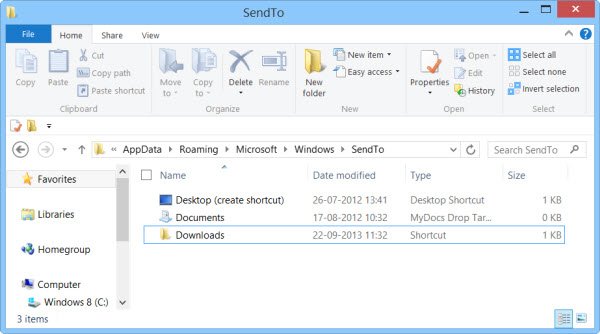
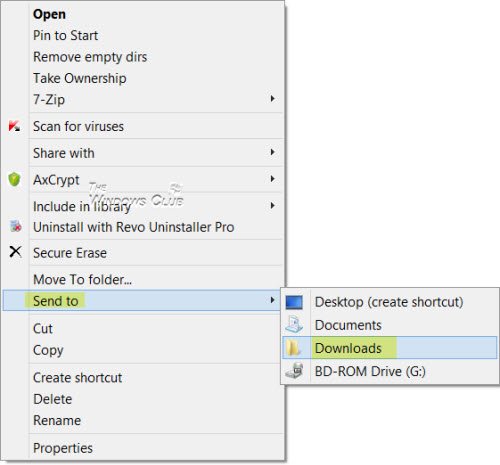
The Downloads folder will now appear in the Send To menu.
In case there are some items you don’t use at all, you might want to consider removing them. If you have too many 3rd-party items in your Send To menu and want to remove them, you can simply delete those items from the SendTo folder. This way, if you find your Send To menu opens slow, or your cursor hangs at the Send To menu, you will now see that after reducing the number of items, this menu opens up faster.
Free software to add items to Send To menu
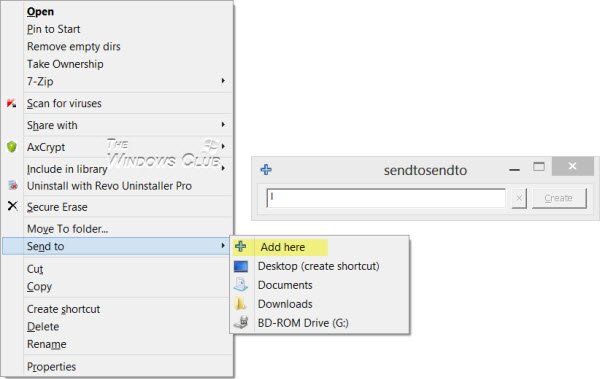
If you are looking for a 3rd-party freeware that lets you quickly customize the Send To menu, you can try Send To Toys or SendToSendTo. These shell extensions that allow you to easily add new entries to the Windows Send To option in the right-click context menu. You can now applications and folders to it. For example, one can even add Dropbox to the Send To context menu.
Send To item missing in the context menu
In case you find that Send To is missing from your right-click context menu, to add it back, open Registry Editor and navigate to the following key:
HKEY_CLASSES_ROOT\AllFilesystemObjects\shellex\ContextMenuHandlers\Send To
If you do not see Send To, then create it and name the key Send To, and give it value:
{7BA4C740-9E81-11CF-99D3-00AA004AE837}
Exit and restart your computer and check.
How do I remove Send to item from the context menu?
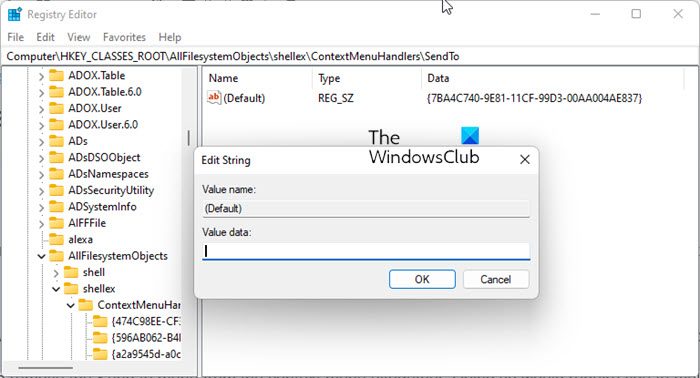
Open Registry Editor and navigate to the following key:
HKEY_CLASSES_ROOT\AllFilesystemObjects\shellex\ContextMenuHandlers\Send To
Now on the right side, double-click on the (Default) value and delete the text that is displayed, leaving the “Value data” box empty
Click OK and exit.
For your information, the Value data on my Windows is {7BA4C740-9E81-11CF-99D3-00AA004AE837}. Make a note of yours, just in case you wish to add it back later.
TIP: Learn how to expand & see the hidden Send To menu in Windows.
Check this if post your Send To Menu is not working. You may also want to check out our post on Add Move To or Copy To to Explorer Context Menu.

