
These are the days of large hard disks and seldom do we come across a case where someone is running out of disk space. Nevertheless, if you think you are running out of disk space on your Windows computer, you need to free up & increase hard disk space, before your system starts facing issues or starts getting the Low Disk Space notifications, you may have to consider options to free up some disk space fast.
Free up & increase hard disk space in Windows 11/10

Here are some steps you may take to reclaim lost disk space in Windows 10:
- Run Disk Cleanup Utility
- Uninstall programs
- Use junk cleaner for more options
- Disable Hibernation
- Compress files you don’t use often
- Remove .old files.
1. Run Disk Cleanup Utility
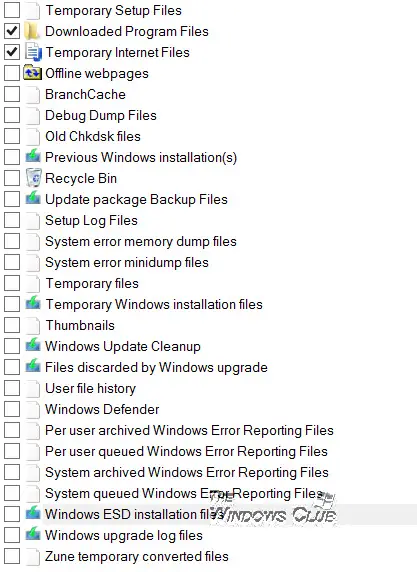
Run Disk Cleanup Utility. Type Disk Cleanup in Start Menu or Start Screen and hit Enter to bring it up. Run it. You may also wish to consider the More Options that it offers. You may also want to activate the enhanced version of the Disk Cleanup Tool or make it delete even 7-day old temporary files. You can also free up additional disk space by removing all but the most recent system restore point using the Disk Cleanup utility.
2. Uninstall programs
Uninstall programs that you do not use, through the Control Panel. Windows users may also want to uninstall Windows Store apps they do not use. In Windows 8.1, open Charms > PC Settings > PC and Devices ? Disk Space. here you will get an idea of how much disk space each app is taking up.
3. Use junk cleaner for more options
Download and install some good freeware junk cleaner like CCleaner or use our portable Quick Clean. They are good and safe utilities that will help you remove your unwanted junk files in a few clicks.
4. Disable Hibernation
Disable Hibernation and delete the Hiberfil.sys file, if the space problem is critical on your System Drive. It’s a hidden file on the root directory of your system drive. Open Control Panel. Type Hibernate in the search bar. Select turn Hibernate On/Off.
5. Compress files you don’t use often
You may want to consider compressing some files. One option not considered by many is the ability of your Windows to compress files and folders. Most feel that after compression, re-accessing files and data is slow and that it takes time to open such compressed files. I urge you to try it. You will find that the time difference is imperceptible. But you will be able to reclaim a lot of disk space this way. Do note, however, that you should not compress the Windows or the Program Files folder using this method.
If you have some data files or pictures, etc, that you don’t access frequently, consider compressing them using the zip formats. Also, consider moving them to another drive or back them up externally, instead.
6. Remove .old files
If you have installed a Feature Upgrade recently and things are file, you can reclaim disk space by deleting the unwanted backup or.old files.
I do not recommend the following to save disk space:
1. I do not suggest deleting the Prefetch files. Every time you clean up the Prefetch folder, you delay application load times, the next time you launch them. It is only after the second time that you regain optimal application load times. Only one Prefetch file is created per application. Windows cleans this folder at 128 entries, down to the 32 most used Application’s prefetcher files. This folder does not occupy more than around 50MB. Cleaning the Prefetcher can, therefore, be construed actually as a temporary self-inflicted un-optimization measure!
2. Log files may be required during uninstall’s, and if they are not found, application uninstall may fail. Hence do not delete them.
3. You never know when you require bak files. A good reason to not delete them.
4. Thumbs.db files help you in loading thumbnail images faster, and in any case, get re-created; unless of course, you disable thumbnail caching. To disable thumbnail caching instead, rather than deleting them every now and then.
5. Do not also consider deleting anything from the WinSXS folder or the Windows Installer folder. They are system folders which play an important role.
6. Do not disable System Restore to save disk space. You never know when it could save your skin!
7. See this post if you feel the need to free up disk space by deleting previous System Images and Backups.
8. In Windows 11/10, you can also delete files & clean up your Hard Disk via Settings.
If you need to know what’s eaten up your Disk Space, you may use some freeware like Disk Space Fan. You will be able to know which file or folder is occupying what space.
The Disk Footprint Tool in Windows 11/10/8.1 will let you carry out several tasks pertaining to Disk Space usage. You can use it to take snapshots, summaries, analyze disk usage, anonymize, compare growth over time using disk growth study, and more.

