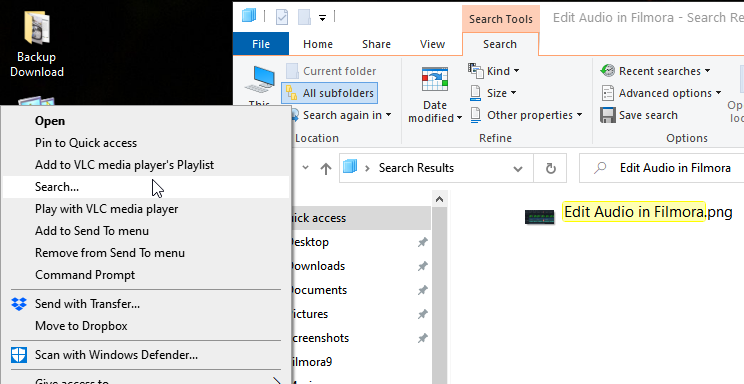
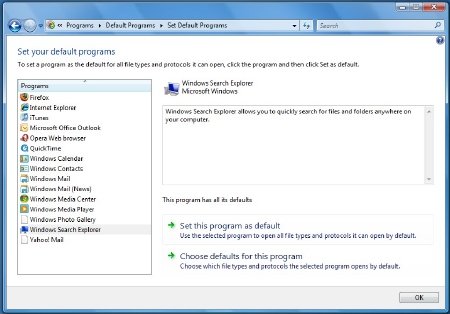
If you find Windows Search missing from the Start Menu, then this post may interest you. Windows Vista’s SP1 changes the Search feature to allow users to choose a default desktop search program by using Set Default Programs from the Control Panel. Here are a few alternate ways to search in Windows 7 and Windows Vista.
You may have also noticed small changes to the UI, relating to Search, in the Start Menu. The Search Button has been removed from the right side of the Start Menu. A button labeled Search Everywhere has replaced See All Results now.
The contextual Search has also been removed. In Windows Explorer, users will also see a Search Everywhere option in the toolbar now.
Search missing from the Start menu
It is one of the unwelcome changes introduced by Microsoft introduced in Service Pack 1 and higher versions, including Windows 7. Why an unwelcome change? Until now there was an easy way to get to the Search screen via
- Start menu button
- Folder context menu item
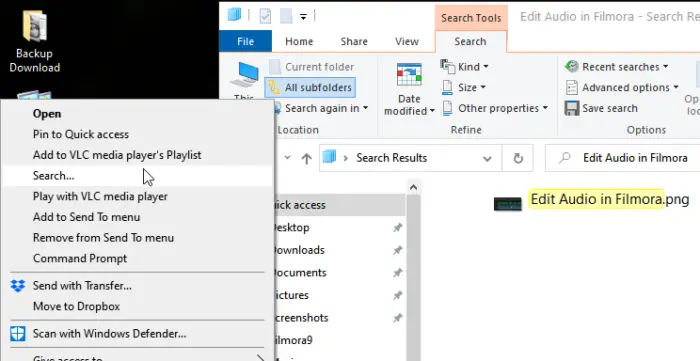
Luckily, if you aren’t happy with the change, you can get back the “Search” item and add it to the context menu with a simple registry tweak. The beautiful thing about the folder context menu is that the search window will be already set to search only that folder.
If you wish to restore the context menu search item, do the following:
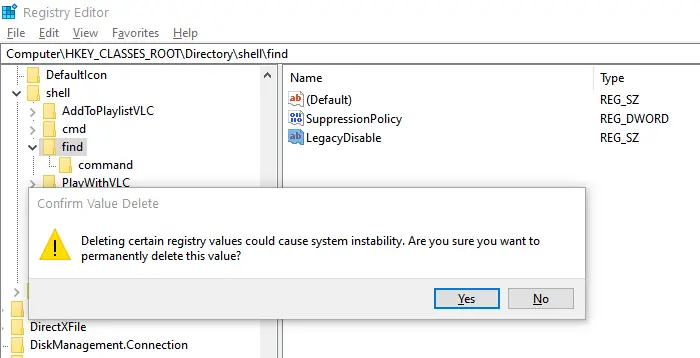
- Open Regedit and navigate to
HKEY_CLASSES_ROOT\Directory\shell\find
- Delete the String REG_SZ: ‘LegacyDisable’
- Go back to Windows Desktop, right-click on any folder, and you should search option for it.
When you click on it, it will open a search page where you can type your query and hit enter. It will make sure to find the text in that folder only.
More Ways to bring the Search Results window
- Windows Key + F
- Click the taskbar and hit F3 on the keyboard
- Open an Explorer window and hit F3
- In cmd.exe type start search-ms: and hit enter.
I trust this helps you.