
If, for security reasons, you wish to hide, show, add, or remove the specified or the EXISTING DEFAULT Control Panel Applets in Windows 11/10/8/7, or for convenience’s sake, add YOUR OWN applets to the Control Panel, here is how you can do it.
Show only specified Control Panel Applets
Type gpedit.msc in Windows Start Menu Search Bar, hit Enter to open the Group Policy Editor.
Navigate to User Configuration. Expand Administrative Templates > Click Control Panel > Show only specified Control Panel Applets > Properties.
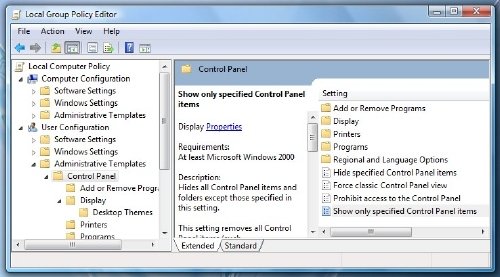
A dialog box will open. Click on Enable. The Show button will come alive.
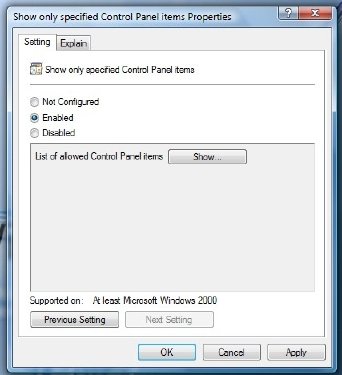
Click on Show and a new dialog box will open.
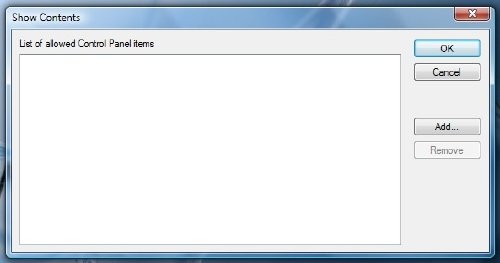
Those items which are NOT on this list WILL NOT be displayed IF this is enabled. You will have to ADD the control panel applet’s NAME, (eg: appwiz.cpl) which you WANT to be displayed in the Control Panel. But this is easier said than done, and it is rather painstaking work, as you need to KNOW the names! Do click and read whatever is written in the ‘Explain’ tab. This way you can choose which applets to show in the Control Panel.
Here is a non-exhaustive list of all Windows Control Panel applets.
- Add Remove Programs
- Add Hardware
- Administrative Tools
- AutoPlay
- Backup and Restore Center
- Color Management
- Date and Time
- Default Programs
- Device Manager
- Ease of Access Center
- Folder Options
- Fonts
- Game Controllers
- Indexing Options
- Internet Options
- iSCSI Initiator
- Keyboard
- Mouse
- Network and Sharing Center
- Offline Files
- Pen and Input Devices
- People Near Me
- Performance Information and Tools
- Personalization
- Phone and Modem Options
- Power Options
- Printers
- Problem Reports and Solutions
- Program Updates
- Programs and Features
- Regional and Language Options
- Scanners and Cameras
- Security Center
- Sound
- Speech Recognition Options
- Sync Center
- System
- Tablet PC Settings
- Taskbar and Start Menu
- Text to Speech
- User Accounts
- Welcome Center
- Windows Anytime Upgrade
- Windows CardSpace
- Windows Defender
- Windows Firewall
- Windows Sidebar Properties
- Windows SideShow
- Windows Update
To find out the Control Panel applet names, open your system32 folder and search for *.cpl. Your results will throw up the Control Panel Items. I have tried to compile a list of some of them below for ready reference:
- Add or Remove Programs – appwiz.cpl
- Administrative Tools – control admintools
- Add Hardware – hdwwiz.cpl
- Appearance Settings – control color
- Audio Devices and Sound Themes – mmsys.cpl
- Bluetooth Devices – bthprop.cpl
- Date and Time – timedate.cpl
- Display Settings – desk.cpl
- ODBC Data Source Administrator – ODBCCP32.cpl
- Firewall – firewall.cpl
- Folder Options – folders
- Game Controllers – joy.cpl
- Infocard – control infocardcpl.cpl
- Internet Options control – inetcpl.cpl
- Keyboard – control main.cpl Keyboard
- Mouse – control main.cpl
- Network Connections – ncpa.cpl
- Pen and Input Devices – tabletpc.pcl
- People Near Me – collab.pcl
- Phone and Modem Options – telephon.cpl
- Power Options – powercfg.cpl
- Printers and Faxes – control printers
- Regional and Language Options – intl.cpl
- Scanners and Cameras – sticpl.cpl
- Windows Security Center – wscui.cpl
- Task Scheduler – control schedtasks
- Text to Speech – control speech
- System – sysdm.cpl
- User Accounts – lusrmgr.cpl
Remove or Hide Control Panel Applets
Some of us may or may not want some applets (icons) showing in the control panel, for security or any reasons whatsoever. Here is a small tutorial to show how to hide them. There are tools that do that, but this way, you can hide any, manually.
Let us say you want to hide the ‘Folder Options’ applet in the control you can do so thus:
Open Group Policy Editor: Click Start > Run > gpedit.msc > OK.
Click on ‘User Configuration’ and choose ‘Administrative Templates’.
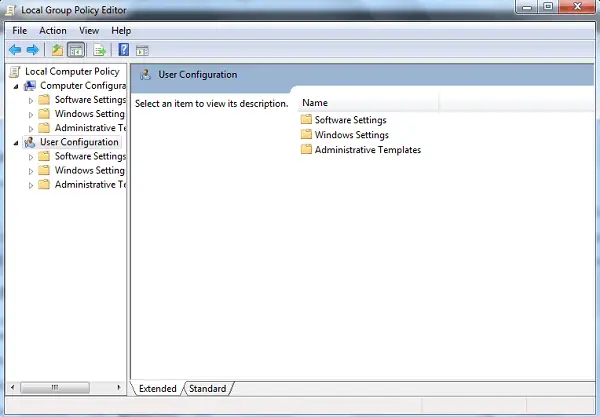
Next, select the ‘Control Panel’ item and choose the ‘Hide specified control panel Items‘ option.
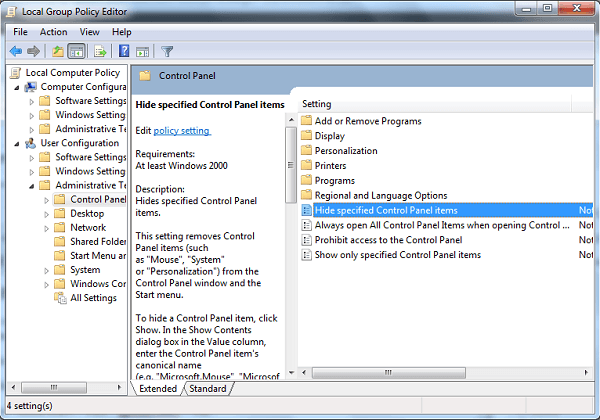
On being taken to a new window, check ‘Enabled’. Then, show list of disallowed Control Panel items > Add > Folder Options > OK > Apply > OK.
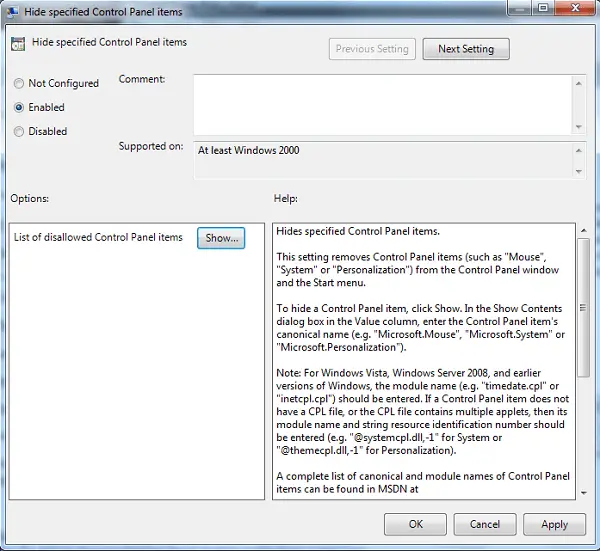
This will hide those Control panel applets.
Add Your Own Control Panel Applets
Adding & Registering YOUR OWN applet & tasks to Control Panel is easier in Windows. Software developers can easily add their own applets and tasks to Control Panel.
There are three types of Control Panel applets: Command objects, shell folders, and CPLs. Command objects are applets that run commands specified in the registry. Shell folders are applets that open up in the Control Panel. CPLs implement the CplApplet function. Command objects are the easiest to implement.
The process of adding applets to the Control Panel in previous versions of Windows is not as easy as using command objects because the applets have to implement the CplApplet interface. Although the CplApplet interface is still supported in Windows Vista, using command objects is encouraged since it is easier to implement.
Now, in Windows, you can just write an executable (.exe), register it as a command object and the applet appears in Control Panel. For more information on how to add and register your own applet in Control Panel, see Developing for the Control Panel. You want to also see Windows Shell Commands.
Under conditions, where computers over a network are not much used other than for official purposes, it is best to hide some Control Panel items (applets). Doing so helps you prohibit users from making unwanted administrative changes thereby keeping basic settings the same.
Go here if your Control Panel or System Restore window is blank.

