
In this post, we will see how to disable, restrict or prevent access to Registry Editor or Registry Editing Tools using Group Policy Editor or by tweaking the Windows Registry in Windows 11/10/8/7. We will also show you what you can do if you cannot access the Registry in Windows. If you receive Registry editing was disabled by your Administrator message, then this post will also help you enable access to REGEDIT.
Prevent access to Registry Editor
On a shared computer, you may want to allow registry access to some users. One can always use the Group Policy Editor, which is available only in select versions of Windows 11. Windows 10, Windows 8, Windows 7 or Windows Vista – or one can tweak the Registry settings to do it.
Prevent access to Registry Editing Tools using GPEDIT
To do so, type gpedit.msc in Windows Start Search Bar and hit Enter to open the Group Policy Editor.
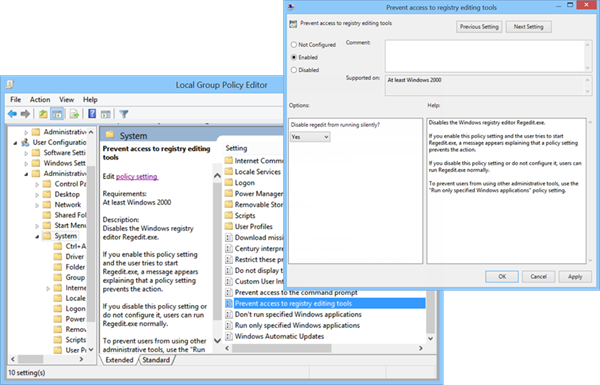
Click Open User Configuration > Administrative Templates > System. Now double click Prevent Access To Registry Editing Tools setting. Set it to Enabled. Click OK.
This setting disables the Windows registry editor or Regedit.exe. If you enable this policy setting and the user tries to start Regedit.exe, a message appears explaining that a policy setting prevents the action. If you disable this policy setting or do not configure it, users can run Regedit.exe normally. To prevent users from using other administrative tools, use the “Run only specified Windows applications” policy setting.
However, this process locks out ALL users, including yourself. You may not be able use the registry editor, but you may still use it in silent mode by using the /s switch. To regain access, you have to again revisit Group Policy Object Editor when required, and change the policy to Disabled or Not Configured.
To enable it again, change the setting back to Not Configured.
Disable access to Registry Editor using REGEDIT
To do so using the Registry Editor, you must have Administrative rights. Next, ensure that the Users account is an Administrator Account, if not, change it, to it.
Now open Regedit, and navigate to the following key:
HKEY_CURRENT_USER\SOFTWARE\Microsoft\Windows\CurrentVersion\Policies\System
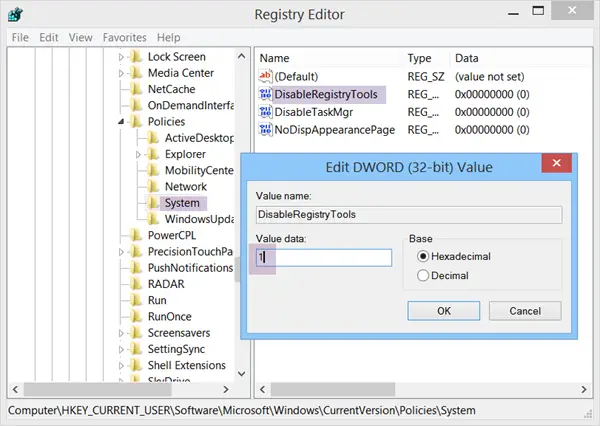
In the right pane change value of DisableRegistryTools and set it to 1.
Exit.
Change back the account type, in case you had changed it earlier. Having done this, this user will not be able to now run regedit or merge .reg files. If any user tries to edit the Registry, he or she will get the message-
Registry Editing has been disabled by your administrator
In such a scenario, a non-admin user will not be able to make system changes using Regedit.
To enable it again, sign in as administrator and change the value back to 0.
Read: Registry Editor not opening, crashing or stopped working
Windows regedit won’t open
If for some strange reason, you cannot access the Registry in Windows 11/10/8/7, do the following:
Open an elevated command prompt window, type the following and hit Enter:
REG add HKCU\Software\Microsoft\Windows\CurrentVersion\Policies\System /v DisableRegistryTools /t REG_DWORD /d 0 /f
You may also add it using the Run box.
You may also use our freeware Ultimate Windows Tweaker to enable or disable Registry Editor on the fly.
See this post if you want to disable Command Prompt.

