
When you click on the Windows Shutdown or Restart button and you find that your Windows 11/10 will not shut down or restart, then this post will help you troubleshoot and fix the problem. It may go as far as the teal-colored screen, where it displays Shutting Down … or Restarting… and then remains there. In other words, your Windows 11/10/8/7 may shut down, freeze or the activity circle on the screen may continue to move – and the only way to shut it down is to press the Power button to power down the system.
Why can’t I shut down Windows PC?
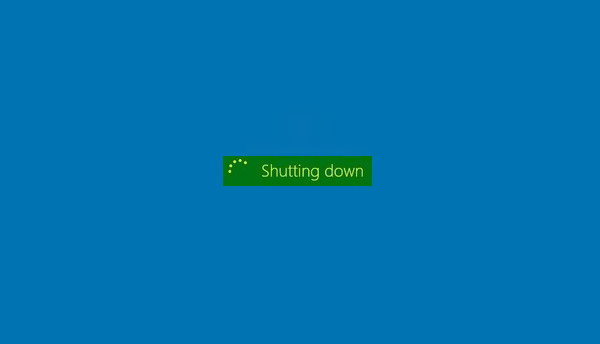
Windows PC does not shut down or restart
Here are a few valid reasons that may prolong or prevent a Windows shutdown or restart.
1] Wait for Windows to complete pending OOBE processes
If yours is a new Windows install, maybe “OOBE” is taking its time. This is especially true in the earlier versions of Windows. In the initial days, when you try to restart or shut down a Windows-based computer, the system may take a long time to restart or to shut down.
Read: Windows stuck on Restarting screen
2] Wait for Windows to complete configuring Updates
Alternatively or additionally, you may receive a message that resembles the following: Windows is configuring updates. This usually occurs 1-2 days after you first start Windows – or sometimes after a Windows Update. The problem occurs because the system has to perform maintenance functions to delete unnecessary files. Typically, this process will occur one or two days after the Out Of Box Experience (OOBE) Wizard runs. When this problem occurs, it may take as long as 10-20 minutes to shut the system down. The process occurs only one time. So just wait for the process to finish once.
If you’ve updated your Windows, maybe the Updates are taking a little longer than expected time to configure or install. It is best to let the system take its own sweet time, as it is only a temporary situation.
Read: Computer light and fan stay on after shutdown
3] Disable deleting of Swap file
Have you set Windows to delete Page (Swap) file at every shutdown? If so, then this process will take some time. You may use this Microsoft Fix It to enable or disable the deletion of the Page File. In this case, you will have to make Windows stop deleting the Page File at every shutdown. While on the subject, this post on how to Disable, delete, recreate paging file may also interest you.
Windows 11/10 will not shut down
But if you think that the problem is something else and is a recurring one, then here are the possible reasons:
- One of your processes or services is not shutting down.
- You have a faulty or incompatible device driver installed.
- You have a faulty or incompatible program running.
Here are a few suggestions that you may consider, not necessarily in the order mentioned, that will help you troubleshoot the problem. Please go through the entire list first and then see what may apply to you.
1] Undo system changes
Undo any recent changes which you may have made to your system. You may have to uninstall a recently installed program or rollback a device driver.
2] System Restore
Try a System Restore and see if that makes the problem go away.
3] Examine processes via Task Manager
Use the Task Manager to try manually and identify the probable cause or causes for this. Manually stop and quit the suspect program, and then shut down to see if the issue is being resolved. You may have to repeat the procedure with several running processes.
4] Check Boot logs
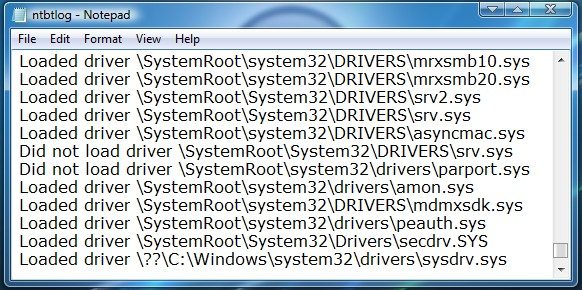
Enter Safe Mode. From the Menu, move the cursor down to Enable Boot Logging and hit Enter.
On reboot, search for the ntbtlog.txt file in C:\Windows folder. Look for any signs of problems loading device drivers. If you find problems, go into Device Manager and disable the device or uninstall the program. Reboot. If the problem does not occur then you know, it was that device or program causing problems.
6] Troubleshoot in Clean Boot
Perform a Clean Boot to troubleshoot the problem. This may help you identify offending third-party processes that is stopping your Windows from shutting down or restarting normally.
5] Update BIOS
Upgrade the computer’s BIOS. Faulty CMOS and BIOS settings can cause startup and shutdown problems.
Read: Operating system did not shutdown cleanly
6] Try to identify Services that are creating issues
This post will show you how to identify Windows Services delaying Shutdown or Startup.
7] Enable Verbose Status Messages
Enable Verbose Status Messages. This will help you identify at which point Windows stops the shutting down process.
8] Enable Shutdown Event Tracker
Enable the Shutdown Event Tracker in Windows 11/10/8/7 so as to be able to analyze your system shutdown process.
9] Run Performance Troubleshooter
Run Performance Troubleshooter and see if it helps you. Type the following in Run box and hit Enter to open it.
%systemroot%\system32\msdt.exe -id PerformanceDiagnostic
10] Check Event Logs
View the Event Logs using the built-in Event Viewer or our freeware Windows Event Viewer Plus to do so easily. Maybe you will find something in the Event Logs.
11] Disable Hybrid Shutdown
If you are running Windows 11/10, disable Hybrid Shutdown and see if it helps.
12] Use Emergency Shutdown or Restart
Use the Emergency Shutdown or Restart option in Windows.
13] Reset BootExecute registry value
Reset BootExecute registry value and see if this will solve your shutdown problems.
14] Update driver
Windows 11/10 users may want to check if their Management Engine Driver for Intel is updated to the latest versions.
15] Apply this KB for Windows 7
If you have a computer that is running Windows 7. When the system is under heavy load, you may encounter a problem where Windows 7 stops or the keyboard responding when you shut down the computer or put the computer to Sleep. This problem frequently occurs on computers that have multiple processors or that have a processor with multiple cores. In this case, apply the hotfix from KB977307.
16] Disable USB selective suspend setting
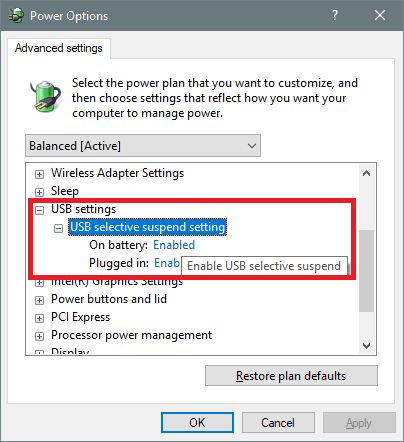
A comment by gogopogo below suggests disabling USB selective suspend setting.
To disable it, open Control Panel > Hardware > Power Options > Change plan settings > Change advanced power settings > USB settings > USB selective suspend setting and set it to Disabled. Click OK and exit.
I hope something helps!
Read next:

