
Use your Windows computer like a Pro! Apart from the several Tips and Tricks for Windows 11 and Windows 10 that we have covered, here are a few small one-line tips that you may not be aware of, but which will show you a faster way of using Windows 11/10/8/7.
Work faster on Windows using these Quick Tricks
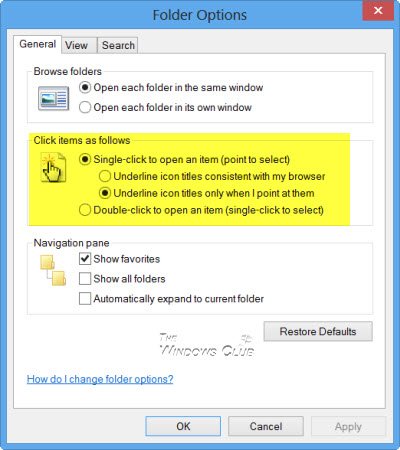
1] Why click twice to execute a task? Halve the number of clicks you make in your lifetime! Open Explorer > View > Folder Options > Settings > Single-click to open an item. Now, next time onwards, you will need to click only once to open a file or a folder. This is one of the first settings I change after a new Windows install.
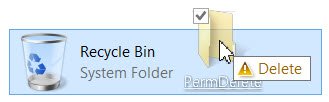
2] Hold down the Shift key as you drag a folder or file to the Recycle Bin to delete it instantly. You will not be able to Restore files sent to the Recycle Bin this way.
3] Hold down Alt & click on file or folder to open its Properties box
4] If you’re using a dialog box with multiple tabs, press Ctrl+Tab to cycle through the tabs.
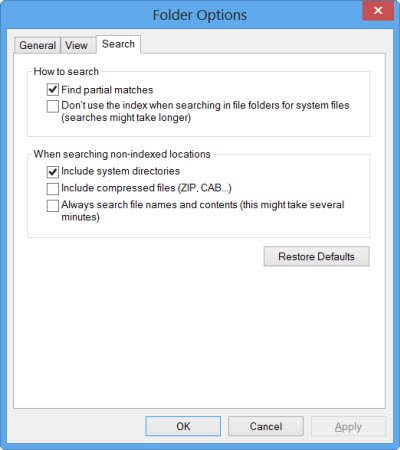
5] Press F2 to rename a selected item in an explorer window
6] Hold down the Shift key and use the arrow keys to highlight and select a block of text or a group of files in an open explorer window
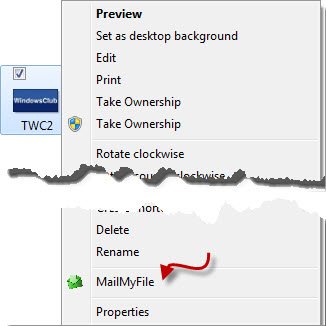
7] Need to mail files frequently to a single particular email ID? Use our freeware MailMyFile, to right-click a file and email it right away.
8] Hold down the Alt key and press Tab key to switch between programs on the desktop
9] Hold down the Alt key and press Spacebar to display the System menu for any active window
10] Facing screen display problems? Press Win+Ctrl+Shift+B to reset your graphics driver.
12] Press F5 to add the date and time to a Notepad document. More Notepad tips here.
13] Speed up a Windows shut down by closing all your open programs manually, first. To quickly close down all open windows and applications, and then shut down your Windows, keep pressing Alt+F4. This will close all open windows and then present you with the shutdown dialog box.
14] Press the Win Key and start typing, if you want to search something on your PC.
15] Press the Winkey and the period (.) button to bring up the emojis panel.
16] To open an elevated Command Prompt window from the Desktop, press Win+X and A at the same time. More Win+X keyboard shortcuts in Windows, you may not have heard of.
17] Avoid a couple of clicks. Use our freeware HotShut to shut down, restart, etc., with a click.
18] To cycle through multiple open tabs or windows of a particular application, like say Explorer or Internet Explorer, hold down the Ctrl key and keep clicking on the application’s icon in the taskbar.
19] In case you close a browser tab, Ctrl+Shift+T will reopen the last tab you closed in your web browser.
20] Did you know that you could use the Explorer address bar as a Run box? Open File Explorer and type any command like cmd, gpedit.msc, regedit, etc. and see what you get! If you have Explorer open, and you need to open any of built-in Windows tools or features, no need to open a Run box, just type the command in the Explorer address bar and hit Enter.
21] Don’t remember all the WinKeys? Install the PowerToys (Shortcut Guide). Now, whenever you press & hold down the WinKey, the reminder box will popup. Simply hit the alphabet you want.
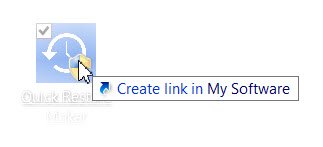
22]. To quickly create a shortcut, hold down Ctrl+Shift and then drag and drop the file or folder icon in the desired destination folder. This is a faster way of creating shortcuts.
23] Open an extended context menu, by just pressing and holding down SHIFT Key while you right-click your mouse button. More Mouse Tricks here.
24] To copy text from an error dialog box, simply press Ctrl+C on the dialog box to copy the text into the clipboard.
25] Let’s say you want to open more than one application from Start Menu in Windows 7. Then to stop the Start Menu from closing, after you open the first, hold down the Shift key while you click on an item. The start menu will stay up and not close, leaving you free to immediately execute the next operation.
26] To quickly rename several files or folders serially, arrange all the files or folders one next to the other, select them all, right-click the first one and select Rename. Rename it to whatever you want. All the files or folders will get renamed serially instantly.
27] To open Properties of any file, hold Alt key, and double-click on the file. The Properties box will open.
28] Hold down the Shift key and then click Restart from the Power button to click the power icon to see the boot option. Details here.
29] To bring up the Apps Bar on Windows 8.1 start screen press the Spacebar or Win+Z.
30] Press Ctrl+Shift+Esc to bring up the Task Manager. No need to go the Ctrt+Shift+Del way.
31] Hold down the Shift key, and right-click on a file to get the Copy as path option in the context menu.
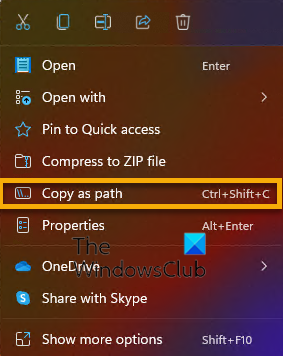
In Windows 11, Copy as path also gets it own keyboard shortcut – Ctrl+Shift+C.
32] Pressing Ctrl+V brings up the Cloud Clipboard.
33] You can exit Explorer using the Taskbar context menu. Press Ctrl+Shift and then right-click on the Taskbar. You will then see the option to Exit Explorer.
34] Middle clicking the Refresh icon in the browser will open a copy of the website you’re on in another tab.
35] In Windows 11 2202 and later, to copy a file path, select an item and press CTRL+Shift+C.
36] In Windows, now, it’s even easier to rename multiple files or folders. If you want to rename multiple files, after renaming the first file, just tap the TAB button, and you’ll be moved on to the next in-line file or folder. You can thus immediately rename the following file.
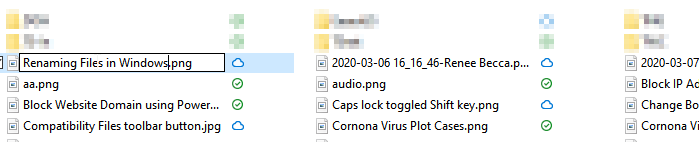
Moreover, Windows also has one more nice feature. Even if you have the ‘show file extension’ feature enabled, it does not highlight the file type extension while renaming. So you are safer, as while renaming, you will not change or delete the extension by mistake.
Any of these you did not know? Or maybe if you know of more such one-line quick-tips – you could share them in the comments box.
Why is Windows 11 very slow?
Windows 11 is not slow. It is your system’s hardware that affects the performance of an operating system or software. That’s why it s always suggested to read the hardware requirements before installing an operating system or software. If you experience the slow performance of Windows 11, you need to upgrade your hardware. Install Windows 11 on an SSD instead of HDD to get ultimate performance and a smoother experience.
Can I downgrade Windows 11 to Windows 10?
Yes, you can downgrade Windows 11 to Windows 10. If you have upgraded your system from Windows 10 to Windows 11, you have 10 days to decide whether you want to run Windows 11 or Windows 10. After this time period, you will not be able to go back to Windows 10 from Windows 11. In this case, you have to use other methods.
Now read: Windows 11 hidden features.

