
In this post, we will see how to disable AutoPlay in Windows using the Control Panel, Group Policy, or the Registry Editor. But before that, let us see what is AutoPlay and AutoRun in Windows. Then we will see how to enable or disable AutoPlay or AutoRun in Windows 11/10/8.
Difference between AutoPlay & Autorun
Autorun is used to start some programs or enhanced media content automatically when you insert a CD, DVD, or another media type into your computer. This is different from AutoPlay, but the result is often the same: when inserted, the CD starts automatically, using a particular program.
AutoPlay lets you choose which program to use to start different kinds of media, such as DVD, CD, etc, containing music, video, photo, etc. For example, the first time you try to play a music CD, AutoPlay will ask you which media player you want to use if you have more than one installed on your computer. You can read more here about AutoPlay in Windows. Autorun is incorporated into the media types that use it, and you can’t modify it. When you try to play a CD that uses autorun, AutoPlay asks you to choose an action to perform -to play the autorun content or to skip it. AutoPlay lets you choose an action, and it is in a way, the successor to AutoRun.
In order to help prevent malware from spreading using the AutoRun mechanism, Microsoft made an important change, starting with Windows 7. AutoPlay no longer supports the AutoRun functionality for non-optical removable media. In other words, AutoPlay still works for CD/DVDs but not for work for USB drives.
AutoPlay in Windows 11/10
When you connect devices to your Windows computer, the AutoPlay feature starts running automatically and begins playing media such as music, images, and videos. For example, the first time you try to play a music CD, AutoPlay asks which media player you want to use if you have more than one installed on your computer. Although good, some of you may want to disable the feature.
Disable AutoPlay in Windows 11/10
Here’s how you can disable AutoPlay in Windows 11/10/8/7.
1] Control Panel
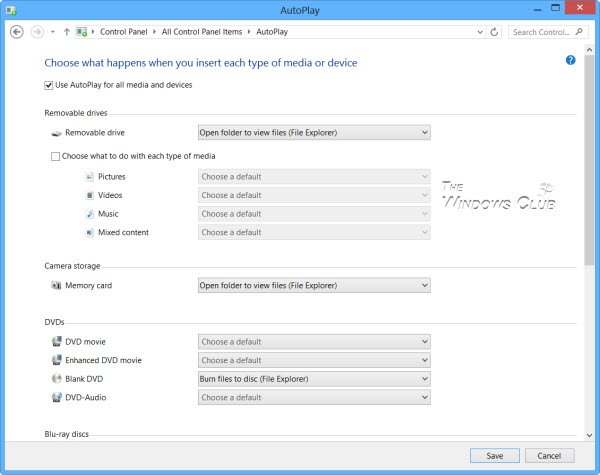
Open Control Panel\All Control Panel Items\AutoPlay and set the options as per your preferences.
2] Using Settings
Windows 11
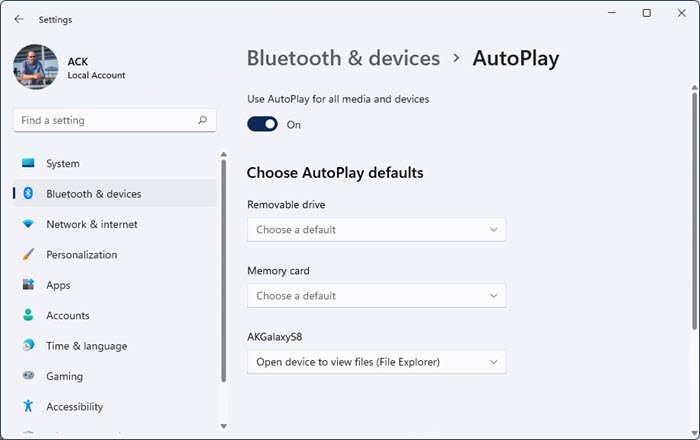
- Open Windows 11 Settings
- Open Bluetooth and devices settings
- On the right, click on AutoPlay
- Toggle the AutoPlay slider to Off position.
- You can also change other related AutoPlay settings.
Windows 10
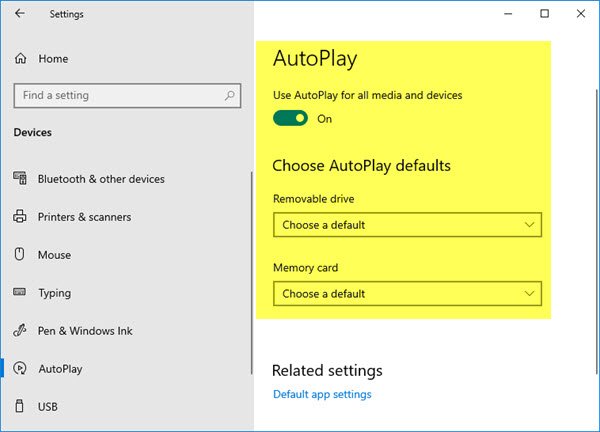
Open Settings > Devices > AutoPlay.
Here you can toggle the AutoPlay slider to Off position.
You can also change other related settings here.
3] Using Group Policy
Type gpedit.msc in the Run box, and then press ENTER to open the Group Policy Editor. Under Computer Configuration > Administrative Templates > Windows Components > Click Autoplay Policies.
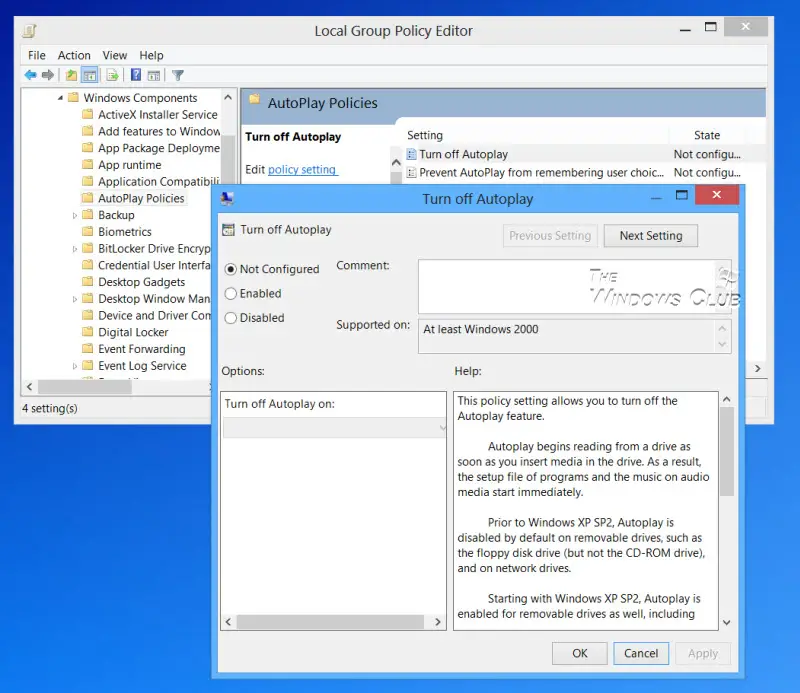
In the RHS Details pane, double-click Turn off Autoplay to open the Properties box.
This policy setting allows you to turn off the Autoplay feature. Autoplay begins reading from a drive as soon as you insert media in the drive. As a result, the setup file of programs and the music on audio media start immediately. Prior to Windows XP SP2, Autoplay is disabled by default on removable drives, such as the floppy disk drive (but not the CD-ROM drive), and on network drives. Starting with Windows XP SP2, Autoplay is enabled for removable drives as well, including Zip drives and some USB mass storage devices. If you enable this policy setting, Autoplay is disabled on CD-ROM and removable media drives, or disabled on all drives. This policy setting disables Autoplay on additional types of drives. You cannot use this setting to enable Autoplay on drives on which it is disabled by default. If you disable or do not configure this policy setting, AutoPlay is enabled.
Click Enabled, and then select All drives in the Turn off Autoplay on box to disable Autorun on all drives.
Restart your computer.
Read: How to set AutoPlay defaults in Windows.
4] Registry Editor
The same can also be achieved by editing the Registry. Run regedit and navigate to
HKEY_LOCAL_MACHINE\Software\Microsoft\Windows\CurrentVersion\Policies\Explorer
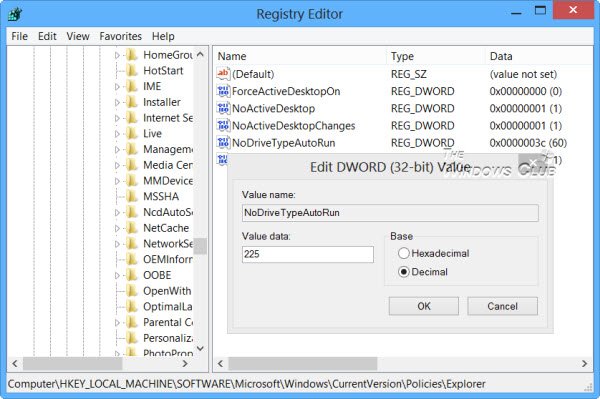
In the right side, you will see dword NoDriveTypeAutoRun. You will see the default value 60 or 3C. Right-click on it and give it a decimal value 255 (or Hexadecimal value 000000FF). Exit regedit. Reboot. This will disable AutoRun on all drives.
You can also download and use our Ultimate Windows Tweaker to disable AutoPlay with a click.

