How many times has it happened to you that you want to cancel a print job, but when you right-click on the print job to end the stuck print job, it does nothing? Moreover, you are also unable to print anything. In short, your print queue gets jammed – neither can you print anything nor cancel the pending print jobs.
How to cancel stuck Print Job queue
If you face this issue of a stuck print job on your Windows 11/10 PC and want to cancel it but cannot, you have these options.
- Reboot your computer & restart your printer
- Cancel and print afresh
- Manually flush the print queue
- Run this BAT file
- Use Print Flush
- Run Print Spooler Cleanup Diagnostic
You will need an administrator account to execute these suggestions.
1] Reboot your computer & restart your printer
You may have noticed that this usually solves the problem, and most usually do this. But this is not an option anyone would like.
2] Cancel and print afresh
From the Taskbar printer icon, click open the Printer > Printer Menu > Cancel all documents.
Open Windows Settings > Devices > Printers & scanners. Select the printer, and under it, you will see a button appear – Open queue. Click on it to see the queue of printing jobs. Right-click on the job and select Cancel all documents.
Read: Printer says Out of Paper, but has Paper
3] Manually flush the print queue
To do this, type services.msc in Windows search and hit Enter to open Services Manager. Navigate down to Print Spooler. Right-click on this service and ‘Stop’ this service.
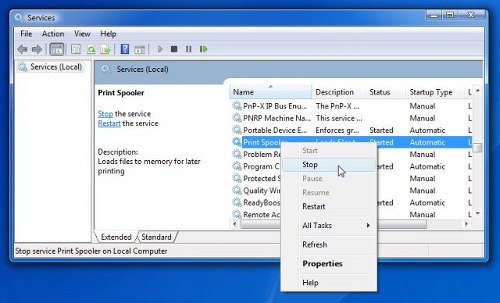
Next, navigate to the following folder and delete all the CONTENTS of this folder.
C:\Windows\System32\spool\PRINTERS
Now right-click again on the Print Spooler service and restart it.
Refresh the print queue. Your problem should have been solved.
4] Run this BAT file
Copy-paste the following in Notepad and save it as a .bat file:
@echo off
 echo Stopping print spooler.
 echo.
 net stop spooler
 echo Erasing Temporary Junk Printer Documents
 echo.
 del /Q /F /S "%systemroot%\System32\Spool\Printers\*.*"
 echo Starting print spooler.
 echo.
 net start spooler
Run the bat file when the need arises. Alternatively, you may also download this ready-made bat file fixprintq, which we have prepared.
5) Use Print Flush
This utility is a simple batch file that takes all the steps necessary to un-jam a printer queue and more. Get it here from bradkovach.com.
6) Run Print Spooler Cleanup Diagnostic
Download the Print Spooler Cleanup Diagnostic from KB2768706. It removes non-Microsoft print processors and monitors. Additionally, it collects basic information about the print spooler and the computer, such as print drivers, printers, basic networking, and failover clustering, and offers various modes of cleanups.
The tool has the following execution modes:
- Express Cleanup – Removes all non-Microsoft print monitors and processors from the print spooler.
- Selective Cleanup – Allows you to select which non-Microsoft print monitors and processors to disable.
- Express Restore – Re-enables all non-Microsoft print monitors and processors disabled by a previous execution.
- Selective cleanup/restore – Lets you select which third-party print monitors or print processors you want to re-enable or disable.
The tool does its work by changing information in the registry as follows:
- It removes non-Microsoft print monitors from
{PrintRootKey}\Monitors, and moves them to{PrintRootKey}\Disabled Monitors. - It scans all printer drivers in the printer’s key, and updates all print drivers that are using one of the disabled monitors and disabled them.
- It removes non-Microsoft print processors
{PrintRootKey}\Environments\{Architecture}\Print Processors, and moves them to{PrintRootKey}\Environments\{Architecture}\Disabled Print Processors. - It scans all printers in the printer’s key, updates all print drivers using one of the disabled print processors, and moves them to “WinPrint.” The old print processor configuration is stored on a registry value named “Disabled Print Processor.”
Read: Printer not printing in color on Windows.
Have a nice day!
Why do print jobs stay in the queue after printing?
When a document gets printed, the printer sends out a notification to the Printer service that it’s complete. Only then the printer removes the document from the queue. However, the job can remain in the queue if your printer is not sending out the notification or doesn’t have this feature. The latter scenario doesn’t happen anymore, but you will need to troubleshoot if the notification is not appearing. If nothing happens, it’s best to clear the queue manually, or else the rest of the print job will remain stuck.
Read: Wrong paper size, Paper mismatch error in Printer
How do I cancel a print job that won’t cancel?
The best way to resolve this is first to turn off the pointer, restart the PC, open the Printer queue, and try to remove anything that is listed inside. If you still cannot remove it, stop all printer-related services and try removing again. Turn on the printer and check if you can print; the print job is not there anymore. These are uncommon scenarios where the process gets stuck, and restarting PC should solve the issue.