Live Search


Locations of visitors to this page


AddThis Feed Button
 
 
Creative Commons License
Work By WinVistaClub Licensed Under CCA
 
 
Back To Tips
 
VISTA TROUBLESHOOTING TIPS.
If Language Bar Has Disappeared In Vista.
If you find that your your Language Bar is missing or has disappeared in your Windows Vista, try this:
Control Panel > Regional & Language Options > Change keyboards or other input methods > Keyboard & Languages Tab > Change Keyboards > Language Bar > Choose your desired options. Click Apply > OK.
Error Message : Protection Stub has stopped working.
If while running certain programs , applications or games, you are encountered with a message to this effect :
Protection Stub has stopped working
Here are two things you can try.
First disable UAC and see if it helps.
Else Disable Data Execution Prevention and try again. DEP is a security feature, and it is not recommended that you disable it, though. It basically monitors applications and ensures that they use protected memory in a safe manner. An incorrect usage, causes the application to shut down.
To do so, copy paste the following
bcdedit.exe/set {current} nx AlwaysOff
in Vista's Start Menu Search Bar and press Ctrl+Shift+Enter together, to Run As Administrator.
To re-enable it use
bcdedit.exe/set {current} nx AlwaysOn
instead ! Best to create a system restore point first !
"Safely Remove Hardware" dialog box does not appear in Vista.
If the "Safely Remove Hardware" dialog box does not appear, when it should, in Windows Vista, rather then just removing the hardware and risking possible data corruption or loss, just type the following command in Vista's Start Menu Search bar and hit enter.
rundll32 shell32.dll,Control_RunDLL hotplug.dll
The Safely Remove Hardware dialog box will now appear !
If your Explorer does not display the left folder panel.
If Your Windows Vista Explorer does not display the LHS Folder pane properly or appears all grayed out, you may need to re-register the shdocvw.dll file which is used by Windows to add some basic file operations.
Type the following in the Start Menu Search Bar, and press Ctrl+Shift+Enter
regsvr32 /i shdocvw
Pressing Ctrl+Shift+Enter together, makes the program Run as an Administrator.
After command successfully runs, restart your computer.
Your Explorer should now display the left folder pane properly.
How to re-enable Aero if it is not working.
If for some reason, you are unable to enable or run or start Aero feature in Vista, here are some troubleshooting steps you can try :
First, ensure that your version of Vista has Aero. Home Premium, Business, Enterprise & Ultimate have Aero.
Also ensure that your Graphic card supports WDDM (Windows Display Driver Model)
Next, right-clicking on the desktop, select Personalize.
Click on Themes and select the default Windows Vista themes.
Next, in Windows Color & Appearance, ensure that Enable Transparency is checked.
Also ensure that 'Desktop Windows Manager' Service is set on Automatic.
Now, inspite of this, you still find that Aero does not work, or your Aero has stopped working, simply copy-paste the following command in Vista Start Menus Search Box, and hit Enter.
rundll32.exe Dwmapi.dll,DwmEnableComposition
This will re-enable Aero by flushing it. Also check WindowsHelp.
Even if you find that your Flid3D is not working or disabled, you should try these steps. More at Flip3D Tips.
If, on clicking on Control Panel or System Restore you get a blank white window...
If, when you click on Control Panel or System Restore or such, you get a blank white window, it could possibly be a script problem, and you may have to re-register some dll's. Try to re-register the following dll files in System32 folder. If you don't find the files, then try to extract then from your Vista setup DVD and copy them to System32 folder first.
vbscript.dll
jscript.dll
mshtml.dll
How to Register / Un-register dll's can be found on the ETC page.
How to turn Hibernate on or off in Windows Vista.
Windows Vista has changed the way its power management works. Now, when you put your PC in Sleep Mode, it will remain in the 'low power consumption' mode for about 3 hours before switching automatically to the Hibernate mode.
The hibernate button can disappear after a disk cleanup or if you delete the hibernate file. So, if you cannot find the Hibernate button or if the Hibernate Option is Missing, do this:
Type cmd in Vista's start menu search bar. Right-click on cmd and select 'Run as Administrator'
Now type in the following command and hit enter.
powercfg -h on
To turn hibernation off, type instead
powercfg -hibernate off
Alternatively to enable hibernation simply type
powercfg /hibernate on
as the case may be and press Ctrl+Shift+Enter.
A command prompt will appear and disappear.
Pressing Ctrl+Shift+Enter together, makes the program Run as an Administrator.
How to find out the meaning of an Error Message or Error Code.
Microsoft has prepared a wizard which takes you through three key steps, to finding an error message or error code using the Microsoft Support 'ErrorFlow' Website. Worth bookmarking !
Error Flow
Alternatively this interactive Microsoft 'Find information on error codes from the Event Viewer' WebSite on how to out any information on error codes from the 'Event Viewer' is also useful. Here, you can search for an error code found in the 'Event Viewer'. Technets Events and Errors Message Center may also help.
How to disable the message: The publisher could not be verified. Are you sure you want to run this software?
When you try to run a program which does not have a valid signature, you get a message:
The publisher could not be verified. Are you sure you want to run this software?
Should you wish to disable this message, here is what you can try. But first, please create a system restore point first, to be on the safe side. Then try this:
Open IE > > Tools > Internet Options > Security tab > Local Intranet icon > Select Sites > Click on the Advanced button > Unselect Require Server Verification. Now add the name of your your server or domain, and click on Add. Your server name should be the name which appears after the 'From' in the Security warning dialogue. Make sure you include the \\ too ! Having done this, you should now see Filename//Servername in the box.
Alternatively, to disable the dialogue box for ALL .exe files, you can add the following key to your registry:
[HKEY_CURRENT_USER\Software\Microsoft\Windows\CurrentVersion\Policies\Associations]
"LowRiskFileTypes"=".exe
But this is not advisable, as it opens up your computer to other risks.
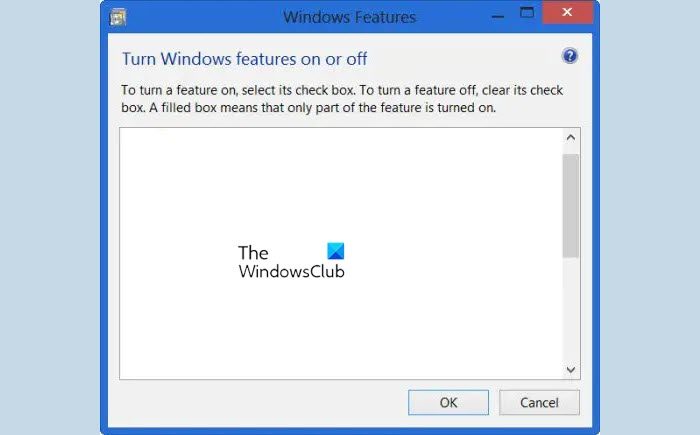
If your optionalfeatures.exe or "Windows Features" dialog box is blank or empty.
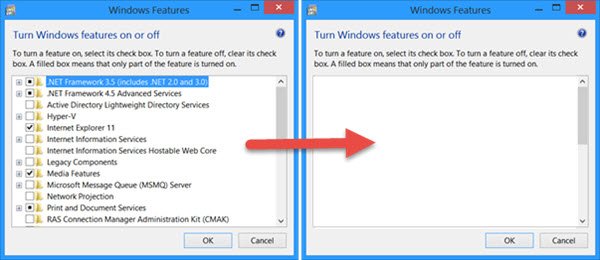
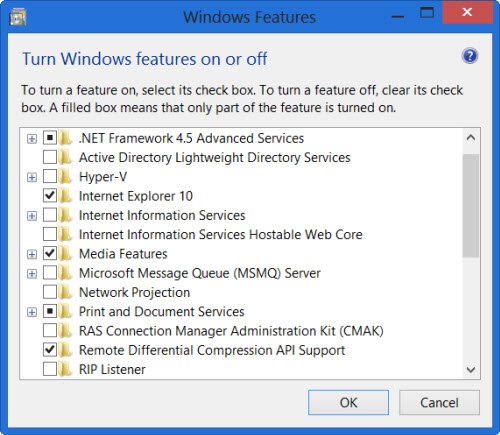
If you try to access the 'Turn Windows Features On or Off', through, the Control Panel or by simply typing optionalfeatures.exe in your start menu's search box, the following dialogue box is expected to open.
Windows Features.
But if the 'Turn Windows Features On or Off' / optionalfeatures.exe gives you a blank or an empty box, it is quite possible that the component store that contains information about Vista components has been corrupted.
To rectify this problem, type the following command in cmd and hit enter:
reg delete HKLM\COMPONENTS /v StoreDirty
But this is not known to work for all ! In that case a Vista Repair would be an option to consider.
Folder Options Missing ? Task Manager Disabled ? Regedit Disabled ?
Three of the most common problems which many face. Esp if your machine is infected or just recovering from a malware infection.
Folder Options is missing or grayed out ? Click here and go to tweak number 129. Download it, double click on it and add to registry. Reboot.
Task Manager Disabled ? Download and apply this registry fix. Reboot. A good read here.
Regedit Disabled ? Click Start > Run > gpedit.msc > User Configuration > Administrative Template> System > Prevent access to registry editing tools > Rt Click on it > Properties > Check Enable> OK. Reboot.
 RRT and TaskManager Fix are two utilities which can help you address such issues easily.
If your Documents/Computer Folder opens automatically at StartUp...

Click Start > Run Regedit > Navigate To > HKEY_LOCAL_MACHINE\ SOFTWARE\ Microsoft\ Windows NT\ CurrentVersion\ Winlogon
In RHS panel, change value of "Userinit" to : C:\WINDOWS\system32\userinit.exe

Now Navigate to : HKEY_CURRENT_USER\ Software\ Microsoft\ Windows\ CurrentVersion\ Explorer\ Advanced
In RHS panel, change value of "PersistBrowsers" to 0
Reboot.
Screen Resolution Changes on every Re-start of Vista.
If you find that your screen resolution keeps changing, on every re-start or re-boot of your computer, here are a few suggestions you can try :
1) Ensure that your Drivers are up-to-date.
2) Disable the screen saver and see if it helps.
3) Else, 'Run' msconfig. Then, on the Boot Tab, ensure that the BaseVideo option is un-checked. Re-start.
4) Try changing the Power Settings, to allow for Sleep Mode, when sharing media.
Then from an administrative command prompt, 'Run'
powercfg -h on
Mapped Drive gets disconnected while copying large files.

If your Mapped Drive or Network gets disconnected while copying large files, over mapped drives, then this is what you should do. This is caused due to the new auto-tuning network, in Vista, which changes the windows on-the-fly. To turn it off, type cmd in start menu search bar. On the cmd shortcut which appears, rt-click on it and select Run As Administrator. Now, to turn auto-tuning off, type the following and hit enter:

netsh int tcp set global
autotuninglevel=disabled
If your Copying in Vista takes a long time try the Hotfix here.
These Links may Interest You:
How To Make Vista Start, Run and Shutdown Faster.
INTERNET EXPLORER 7 IN VISTA - TWEAKS & TROUBLESHOOTING TIPS.
 
Top


© Copyright 2007, 2008, WinVistaClub. Rights Reserved.