
The Check Disk Utility or Chkdsk.exe, in Windows 11/10 checks for errors in the disk media and file system. If you encounter problems, such as blue screens or the inability to open or save files or folders, you should run chkdsk.exe.
Check Disk can run automatically, in the case of an abrupt shutdown or if it finds the file system to be ‘dirty’. There may be times, when you may find that this Check Disk Utility runs automatically every time your Windows starts. You may have scheduled its run, or your Windows may have decided to schedule its run. But instead of running just once, it continues to run every time your Windows computer boots.
Check Disk runs automatically at every startup
If your Check Disk or chkdsk tool in Windows runs on every boot, here are a few things you may want to try to cancel the ChkDsk operation:
- Let it run once completely
- Edit the Windows Registry
- Cancel ChkDsk using Command Prompt.
Let us see these steps in detail.
1] Let it run once completely
Running this process denotes that you have some problem in your hard disk and your computer is trying to fix it. Therefore, you should let it run once completely instead of interrupting.
2] Edit the Windows Registry
There is a Registry file that you need to edit to fix this problem. For that, do the following:
- Press Win+R to open the Run prompt.
- Type regedit and press the Enter button.
- Click the Yes option to open Registry Editor.
- Navigate to this path:
HKEY_LOCAL_MACHINE\SYSTEM\CurrentControlSet\Control\Session Manager - Double-click on the BootExecute String Value.
- Change the Value data from autocheck autochk * /. to autocheck autochk *.
- Click the OK button.
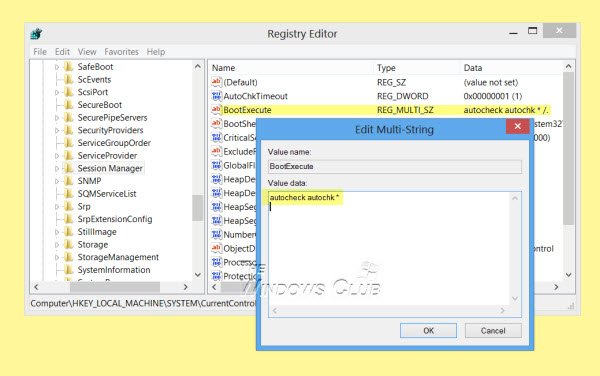
If this works for you great, else try the next step.
3] Cancel ChkDsk using Command Prompt
Open a command prompt window, type the following and hit Enter:
fsutil dirty query g:
This command will query the drive, and more than likely it will tell you that it is dirty.
Next, execute the following command:
CHKNTFS /X G:
The X tells Windows to NOT check that particular drive (G) on the next reboot.
At this time, manually reboot your computer, it should not run Chkdsk now, but take you directly to Windows.
Once Windows has fully loaded, bring up another command prompt and execute the following command:
Chkdsk /f /r g:
This should take you through five stages of the scan and will unset that dirty bit. Finally, type the following and hit Enter:
fsutil dirty query g:
Windows will confirm that the dirty bit is not set on that drive.
You can run the chkdsk /r command or the chkdsk /f command to check a hard disk for errors.
I hope this helps.
If you need more inputs you can always take a look at the ChkDsk log files.
Why does my computer do a disk check every time I start it up?
If your computer is running disk check every time you start it up, that implies some issues in your hard disk. When your computer detects some internal problems, it automatically runs the disk check process to eliminate the issue.
How do I stop chkdsk from running at startup in Windows?
There are several things you can do to stop chkdsk from running at startup in Windows 11/10. For example, you can finish the scan, edit a registry file named BootExecute, etc. On the other hand, you can cancel ChkDsk using Command Prompt as well.
Related reads:
