A Device Driver is a program that controls or helps operate a hardware device. When 3rd-party vendors create a new driver, it can be submitted to Microsoft for “Device Signing“. This ensures quality. To help maintain the integrity of your Windows operating system, critical files are digitally signed so that any changes to these may be easily detected. However, not all drivers are digitally signed, as a result of which some of them may cause system instability.
Identify Unsigned & Digitally Signed Drivers
1] File Signature Verification Tool or sigverif
Microsoft has a tool in place in Windows 11/10/8/7 called sigverif.exe or the File Signature Verification Tool which helps you identify unsigned drivers.
To access it, type sigverif in Windows search and hit Enter.
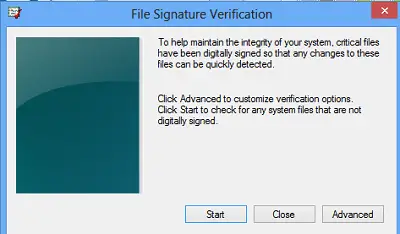
Click Start. The program will scan all the device drivers.
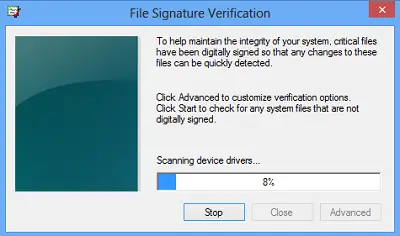
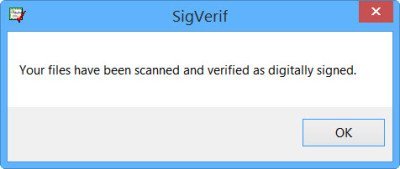
On completion of the scan, it will list down those which are not digitally signed. In my case since all were digitally signed, I received the following message.
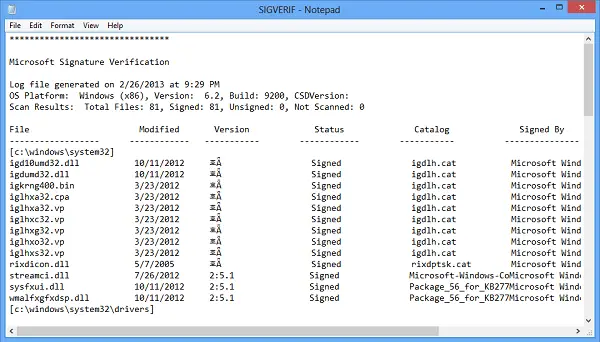
Should you wish to see the list of all the drivers scanned, Click on Advanced & select View Log.
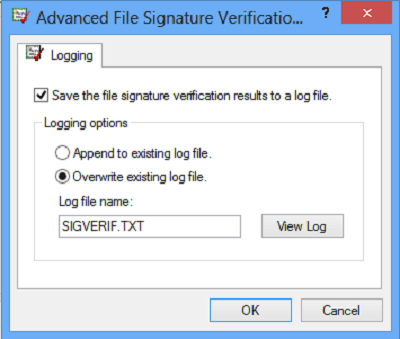
You will be able to view the log.
2] DirectX Diagnostic Tool or DxDiag.exe
To verify if your Drivers are digitally signed, you can run the DirectX Diagnostic Tool. To do so, type DxDiag.exe in the Search Box and hit Enter. The DirectX Diagnostic Tool is designed to help you troubleshoot DirectX-related issues.
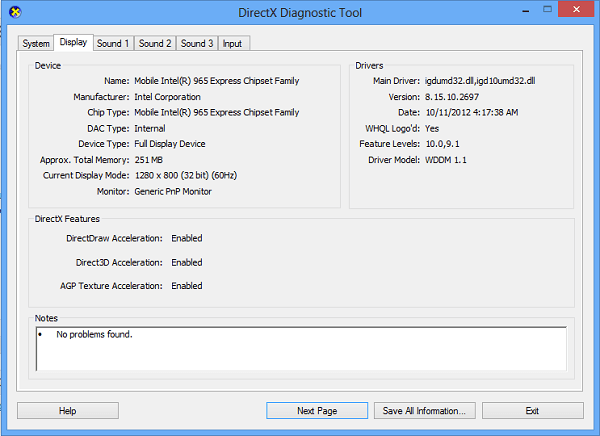
The DirectX Diagnostic tool (DXDiag.exe) gathers information about the system and the DirectX installed components. It also provides a number of tests to ensure that components are working properly.
Use the diagnostic tool to create a report about your computer by running Dxdiag.exe and clicking on the Save All Information button.