Live Search


Locations of visitors to this page


AddThis Feed Button
 
 
Creative Commons License
Work By WinVistaClub Licensed Under CCA
 
 
Back To Features
 
Why does the UAC Prompt disable Aero, when it appears ?
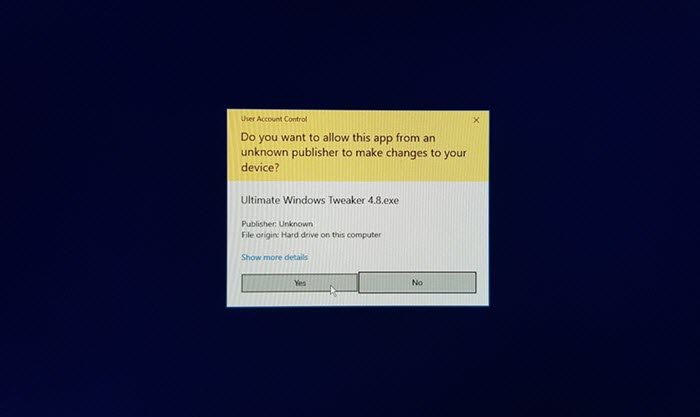
Whenever your UAC prompt appears and asks for your permission, you may have noticed that it darkens the screen and temporarily turns off the Windows Vista Aero interface; and it itself appears without the transparency. This is called Secure Desktop.
When you use Flip 3D, however, you can see it as having the Aero transparency. You can see it below in the first image right in the front. Here the UAC prompt appears with the transparency.
Microsoft MVP, ChotoCheeta, offers the following explanation.
"When you carry out any task which is in need for UAC permission, for security reasons, when Windows Vista asks for the UAC confirmation, it separates the UAC prompt dialog box from your running desktop process. The UAC dialog box runs under a secure mode desktop, so that any malware which may be running under the regular Aero enabled desktop, will just not be able to access the UAC to authorize any action !"
You may think it as a bug of Vista, but is actually a security feature ! Using Secure Desktop prevents other applications from manipulating the UAC prompt.
Nevertheless, if you would like to stop blackening out of the screen when the UAC prompt appears or are simply a Aero lover who likes to see the UAC prompt with the transparency, you can do the following. Note however, that by doing so, you would be opening your computer to possible security risks & threats, and hence is not advisable !.
 
If you are using Windows Vista Business or Ultimate edition, then, follow this:
Type Local Security Policy in Vista's Search Bar, and open it. Goes without saying that you have to be an Administrator.
On LHS, Click on Security and then on Security Options. Next on RHS, scroll download to second last option which says “User Account Control: Switch to the secure desktop when prompting for elevation”.
Double click to make a dialog box appear. here you will see 2 options. The options are:
• Enabled: All elevation requests by default will go to the secure desktop. Default.
• Disabled: All elevation requests will go to the interactive users desktop
Disable the feature, if you wish.
 
These Links may Interest You:
How to Disable UAC for certain applications only.
How to make a Visual Style for Windows Vista
Top


© Copyright 2007, 2008, WinVistaClub. Rights Reserved.