
The built-in Windows Disk Defragmenter has been much improved upon, and more so in Windows 11/10 – and is considered to be much better than its predecessors. The defrag engine and the manageability of fragmentation have been improved. The Disk Defragmenter runs as a low-priority task in the background without affecting the performance of the computer. It runs only when the machine is idle! It uses the Task Scheduler to automatically keep the hard disk defragmented. This automated defragmentation does not affect the performance of Windows 11/10/8/7/Vista.
Disk Defragmenter or Optimize Drives Tool in Windows 11/10
Now, by default, the defrag tool only defragments files smaller than 64 MB, for according to Microsoft’s benchmarks, fragments of this size, which already consist of at least 16000 contiguous clusters, have a negligible impact on performance. This means that games and large media files are effectively left as they are! So if you still want to defrag files larger than 64 MB too, you need to use the -w parameter mentioned below to defragment files of all size.
Defragmentation became even more comprehensive – many files that could not be re-located in Windows Vista or earlier versions can now be optimally replaced. In particular, a lot of work was done to make various NTFS metadata files movable. This ability to relocate NTFS metadata files also benefits volume shrink, since it enables the system to pack all files and file system metadata more closely and free up space “at the end” which can be reclaimed if required.
In Windows 7, Microsoft had turned off defragmentation for Solid State Disks. In Windows 11/10/8 however, since the tool has undergone a change into a general disk optimization tool, you will see it enabled by default for SSDs too. You can read more about the Improved Disk Defragmenter and Storage Optimizer in Windows 11/10. If you use a Solid State Drive, you may want to read this post on Defragmentation and SSD.
The Disk Defragmenter process starts according to a schedule that you can adjust. You can open the Disk Defragmenter in Windows 11/10/8 or Windows 7, by right-clicking on a Drive’s icon, selecting Properties, and clicking on the Tools tab.
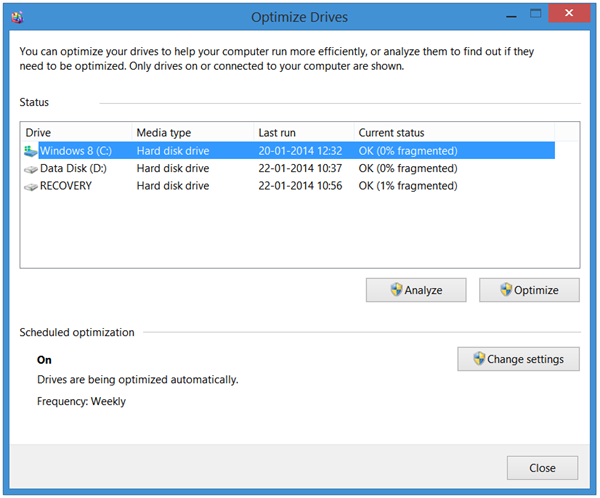
Here, you can change settings by clicking on the Change settings button and opt to run scheduled scans on a daily, weekly or monthly basis. or choose to defragment “now’ by clicking on Analyze or Optimize.
Some Points To Remember:
- Disk Defragmenter does not defragment files in the Recycle Bin. It is best to run Disk Cleaner first and then empty the Recycle Bin before defragmenting
- Disk Defragmenter will also not defragment files that are in use. Best to try and shut down as many processes as possible and then defragment.
- Disk Defragmenter does not defragment the following files: Bootsect DOS, Safeboot fs, Safeboot CSV, Safeboot RSV, Hiberfil sys, Memory dump and the Windows page file. However using the -b parameter, as mentioned below, will optimize the boot files.
Disk defragmenter Command line options
There are various command-line options for you to exercise control over the defragmentation process.
To defrag a specific drive, say Drive C, open a command prompt and type:
defrag c:
-r This is the default setting and defragments file fragments that less than 64 MB.
-a Analyze the selected drive / volume & display a summary report, consisting of analysis and defragmentation reports.
-c Defragments all volumes on the computer. Don’t specify a drive letter while using this.
-w Perform FULL defragmentation of files of ALL sizes.
-f Forced defragmentation even when there is less amount of free space on the drive being defragmented. A volume must have at least 15 % free space before Disk Defragmenter can completely defragment it.
-i This makes Defrag run in the background & operate only if the computer is idle, like when running as a scheduled task.
-v Displays complete reports.
-b It optimizes boot files and applications only.
The only indication you will get is a blinking cursor. This means that the process is going. To interrupt the defragmentation process, press Ctrl + C in the command window.
You can read more here on Defrag Options & Command line switches.
Read: How to increase Hard Drive speed & performance in Windows 10.
Disk defragmenter does not run
If you find that you are unable to defragment or cannot run the defragment utility in Windows or that a drive or volume has been marked as having errors, run chdsk by entering
chkdsk c: /f
at any command prompt; where c is the drive letter. You will be able to then run Defrag after Chkdsk has repaired the file system. If you still face problems, see this post on Disk defragmenter could not start or Failed to initialize.
Related: How to defragment Hard Drive using Batch file.
In Windows 11/10/8, while the default defragger is good enough for most of us, there are some who prefer to use Free Defragmentation Software. You may want to have a look at these too.
Do you know about the Hidden Partitions displayed in Disk Defragmenter Tool?

