
Most of you may have noticed the WinSxS folder in Windows 11/10/8/7 and been surprised at its size. For those who have not, the folder is situated at C:\Windows\Winsxs and has a whopping size! Mine is almost 5 GB and has around 6000 folders & 25000 files and occupies almost 40% of the Windows folder! While the size of this Winsxs folder, in XP, is around 25-50 MB; its large size in Windows 11. Windows 10, Windows 8, Windows 7, and Windows Vista, is intriguing to many! Check the image below.
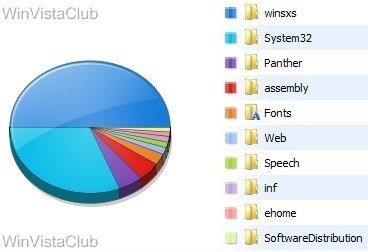
What is WinSxS folder in Windows 11/10
The WinSxS folder, stores multiple copies of dll, exe, and other system files to let multiple applications run in Windows without any compatibility problem. If you browse inside, you will see what looks like a lot of duplicate files, each having the same name. These are actually, different versions of the same files which are being stored; as different programs may require different versions.
Winsxs, which stands for ‘Windows Side By Side’, is Windows native assembly cache. Libraries that are being by multiple applications are stored there. This feature was first introduced, in Windows ME and was considered as Microsoft’s solution to the so-called ‘dll hell’ issues that plagued Windows 9x.
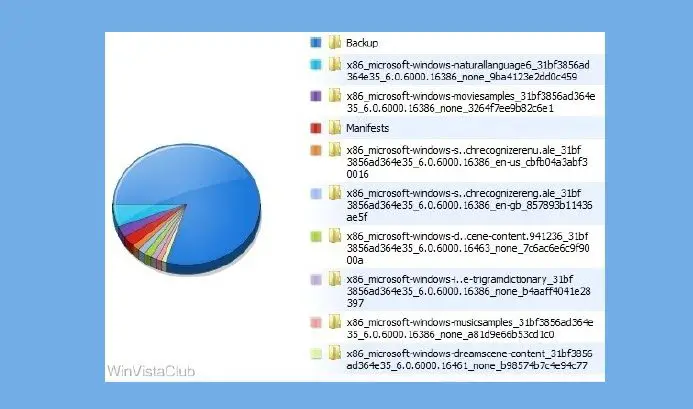
In Winsxs, the ‘backup’ folder is the largest, as can be noticed in the image below.
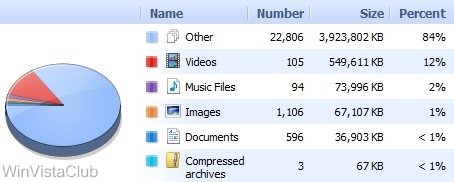
Again, as can be seen in the image below, in the Winsxs folder, the ‘Other’ File types take the bulk of the space. These primarily consist of .imd, .ngr, .csd, .dll, .dll.mui, .exe and such other file types.
In Windows 7 and later, there isn’t a ‘dllcache’ folder and nor can you find the ‘i386’ folder, where the system caches (like in XP) all it’s source modules. It is this WinSxS folder that stores the shared components of side-by-side applications. These files can be multiple versions of the same assembly or application. Every side-by-side assembly has a unique identity. One of the attributes of the assembly identity is its version.
“Side-by-side assemblies are used by the operating system as fundamental units of naming, binding, versioning, deployment, and configuration. The Winsxs folder includes all manifests, optional components, and 3rd party Win32 files”, says Microsoft.
But, why so many subfolders and why keep so many different versions of the same dll, exe, or other files?
As mentioned, Windows stores the old dlls and library components in the WinSxS folder. Now if a newer version of this file is a part of the OS, but a particular application requires a particular older version for running, then the older version from the WinSxS folder will be used, leaving the newer version in its present place, for other applications which may require it.
Is it safe to delete WinSxS folder?
Obviously, you cannot delete this directory or move it elsewhere. Nor is it advisable to delete anything here, as such a step could probably make your applications un-workable or even break your system! If you have many applications installed, you can expect to have a jumbo-sized WinSxS folder. This WinSxs folder cannot reside on any other volume than the system volume. This is because of the NTFS hard links. If you try to move the folder, it may result in Windows updates, service packs, features, etc., not installing correctly.
If you delete components from the WinSxS folder like the manifests or the assemblies, etc., you could be in trouble. Each system would react differently. What may work for one could break another! For instance, if you install a program that requires that particular assembly, which you may have deleted, then that program will just not run! Compressing the folder is also a no-no, as it could cause problems during WindowsUpdates or while installing a Hotfix.
The safest way to clean it is by simply uninstalling applications that you don’t require. However, this, too, is not fool-proof, as many applications still leave behind their files here, since they may be shared between other applications. So the probability of dud unused dll‘s being left behind is quite high.
We would not advise the use of WinSxS cleanup tools like WinsxsLite as you could end up breaking your Windows.
And if you are into trying out new software or installing and uninstalling frequently, you may notice that your Winsxs size is indeed large, as Windows will store multiple copies of these dll files, in order to let multiple applications without compatibility problems.
WinSxS Folder Cleanup in Windows 11/10
Windows introduced a new command-line option for WinSxS folder cleanup: DISM.exe, /AnalyzeComponentStore. Running this command, will analyze the WinSxS folder and tell you whether a Component Store Cleanup is recommended or not. It is present in Windows 11/10, as well.
- In Windows 11/10/8.1/8, open Disk Cleanup Tool and use the Windows Update Cleanup option to clean the WinSxS.
- For Windows 7, Microsoft released an update that added the Windows Update Cleanup option to the Disk Cleanup tool.
- Windows Server users can now also clean up WinSxS in Windows Server with the new Update.
Here are some other options you may consider to free up disk space – some routine and some extreme:
- Run Disk Cleanup tool
- Uninstall unused applications
- Move Page file to another drive
- Disable hibernation
- Use the dedicated dump file option to capture memory dump files on another volume on the system.
- Disable system restore points
- Offload user profile and program file directories to another volume on the system.
Update 1 From TechNet Blogs: One of the largest changes between previous versions of Windows was a move from an INF described OS to componentization. All of the components in the operating system are found in the WinSxS folder – in fact, we call this location the component store. Each component has a unique name that includes the version, language, and processor architecture that it was built for. The WinSxS folder is the only location that the component is found on the system, all other instances of the files that you see on the system are “projected” by hard linking from the component store.
Now that you know why the store can grow to be so large, your next question is probably to ask why we don’t remove the older versions of the components. The short answer to that is reliability. The component store, along with other information on the system, allows us to determine at any given time what the best version of a component to the project is. That means that if you uninstall a security update, we can install the next highest version on the system – we no longer have an “out of order uninstall” problem. It also means that if you decide to install an optional feature, we don’t just choose the RTM version of the component, we’ll look to see what the highest available version on the system is.
The only way to safely reduce the size of the WinSxS folder is to reduce the set of possible actions that the system can take – the easiest way to do that is to remove the packages that installed the components in the first place. This can be done by uninstalling superseded versions of packages that are on your system. Service Pack 1 contains a binary called VSP1CLN.EXE, a tool that will make the Service Pack package permanent (not removable) on your system, and remove the RTM versions of all superseded components. This can only be done because by making the Service Pack permanent; we can guarantee that we won’t ever need the RTM versions.
Update 2 From E7 Blogs: “Modularizing” the operating system was an engineering goal in Windows Vista. This was to solve a number of issues in legacy Windows related to installation, servicing, and reliability. The Windows SxS directory represents the “installation and servicing state” of all system components. But in reality, it doesn’t actually consume as much disk space as it appears when using the built-in tools (DIR and Explorer) to measure disk space used. The fact that we make it tricky for you to know how much space is consumed in a directory is a fair point! The WinSxS directory also enables offline servicing, and makes Windows Vista and later “safe for imaging”.
There have been several blogs and even some “underground” tools that tell you it’s ok to delete the WinSxS directory, and it’s certainly true that after installation, you can remove it from the system, and it will appear that the system boots and runs fine. But as described above, this is a very bad practice, as you’re removing the ability to reliably service, all operating system components and the ability to update or configure optional components on your system. Windows only supports the WinSxS directory on the physical drive in its originally installed location.
Conclusion
Let the WinSxS folder be as it is!
Learn about the Sysnative folder, Panther folder and Catroot & Catroot2 folders here.
Additional reads:

