
You can, if you wish, reset the Internet Options and Settings to default values in Windows 11 or Windows 10. You may need to use this option if you are facing some issues while connecting to the internet.
How to reset Internet Options to default in Windows 11
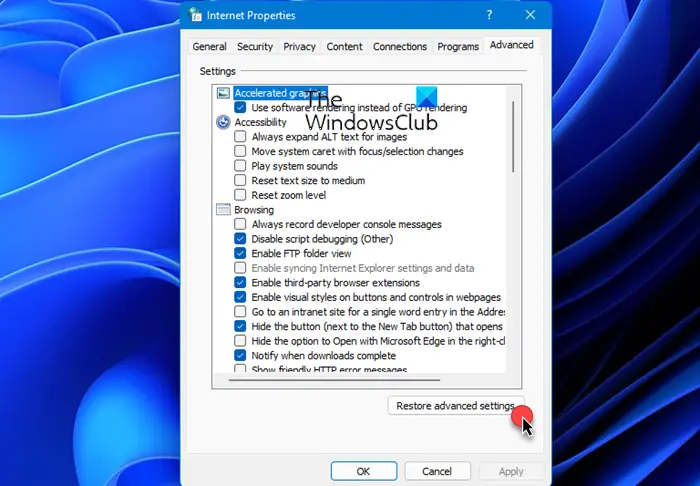
To reset Internet Options to default in Windows 11/10, do the following:
- Search for Internet Options and click on the result to open it
- The Internet Properties box will open
- Click on the Advanced tab
- Locate and click on the Restore advanced settings button
- Next, go to the Security tab and click on Reset all zones to default level button
- Click on Apply and then OK.
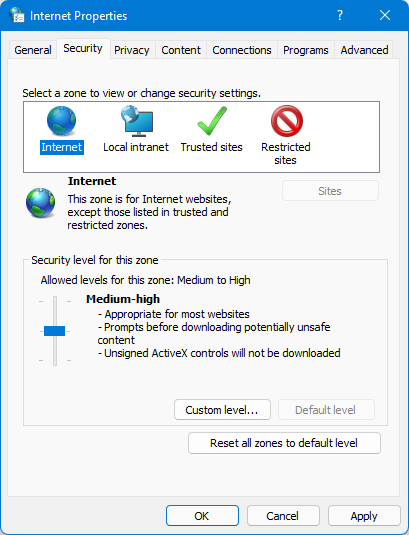
Your Internet Properties and settings will be restored to Windows default values. Your Internet Security Zones will also be reset to default.
If you are facing persistent issues while connecting to the network or the internet, you may also use the Network Reset option. This option will reinstall Network adapters, Reset Networking Components to default.
Related: How to add a Trusted Site via Internet Options.
How to Reset Internet Explorer Settings to default in Windows 10/8/7
Internet Explorer has many security enhancements, that make it less susceptible to malware. However one can never be too sure! Moreover, badly written add-ons can also affect the browsing experience in IE. Often we find that our once fast browser has become slow to start and use. Over a period of time, we may install and uninstall add-ons, plugins, and toolbars. Should you find that your Internet Explorer freezes or is not working the way you want to, you can easily reset Internet Explorer settings to default. This is called the RIES feature of IE.
To reset Internet Explorer Settings to default, open IE > Tools > Internet Options > Advanced tab > Click Reset > Close >OK. Once this is done restart Internet Explorer. But before you use the reset button, there are a few things you should know.
When you click on the Reset Internet Explorer button, the following will happen:
- Toolbars and add-ons get disabled
- Web browser settings revert to the default
- Privacy & Security settings are changed back to their default values
- Tab browser, pop-up settings, and advanced options are reverted back to default values.
If you select the Delete personal settings, then additional settings like home page, search providers, accelerators, etc are all set to default. Moreover Cache, Cookies, Passwords, Web form data, History, ActiveX filtering, Tracking Protection data, etc files are also deleted.
RIES does not reset some settings in Internet Explorer.
The following four settings are not reset, because applications other than IE may be using them.
- Enable FTP folder view (outside of IE)
- Use passive FTP (for firewall and DSL modem compatibility)
- Always use ClearType for HTML
- Check for Publisher’s certificate revocation
To reset these settings, in Windows, you will have to follow these steps:
Click Start, type inetcpl.cpl in the Start Search box, and hit enter. In the Internet Properties dialog box, click the Advanced tab, and then click Restore advanced settings.
The RIES DOES NOT affect the following settings:
By default, the Automatically detect intranet network setting is enabled. To change this setting, follow these steps:
- On the Security tab in the Internet Properties dialog box, click Local intranet, and then click Sites.
- Click to select the checkbox that is next to Automatically detect intranet network.
By default, the Require server verification (https: ) for all sites in this zone checkbox for the local intranet is not selected. To restore this setting, follow these steps:
- On the Security tab in the Internet Properties dialog box, select the Local intranet zone, and then click Sites.
- In the Local intranet dialog box, click Advanced.
- Click to clear the Require server verification (https: ) for all sites in this zone checkbox.
By default, the Require Server Verification (https: ) for all sites in this zone check box for trusted sites is selected.
To restore this setting, follow these steps:
- On the Security tab in the Internet Properties dialog box, select the Trusted sites zone, and then click Sites.
- In the Trusted sites dialog box, click to select the Require server verification (https: ) for all sites in this zone checkbox if it is not already enabled.
By default, the Lock the Toolbars setting is enabled. In Internet Explorer \, on the View menu, click Toolbars, and then click Lock the Toolbars to enable this setting if it is not already enabled.
How do I reset my Internet settings on Windows 11/10?
To reset your internet settings on Windows 11 or Windows 10, you need to use the Windows Settings panel. Press Win+I to open the Windows Settings panel and go to Network & internet. Then, go to the Advanced network settings and click on the Network reset option. Following that, click on the Reset now button.
What happens when you reset Internet Explorer settings?
If you reset the Internet Explorer settings on Windows 10 computer, all the custom settings get reset to factory defaults. No matter which type of setting you changed earlier, all of them will be reset at once. For your information, you can follow the aforementioned guide to reset the Internet Explorer settings on Windows 10 PC.
Windows 11/10 users – see how to reset the Microsoft Edge browser to default settings.

