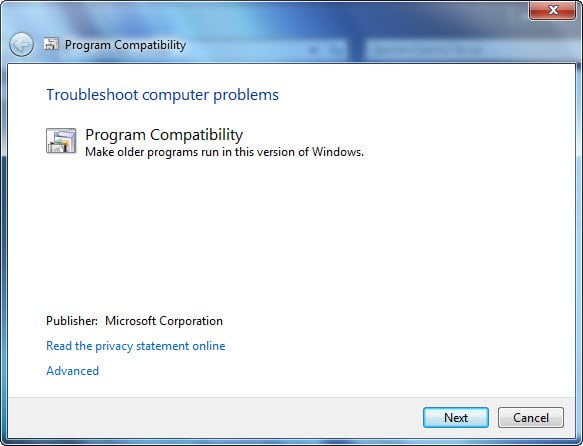
Most programs that ran in Windows Vista, will run in Windows 11/10 or Windows 8/7. However, if you find that the program still does not run properly, you should check run the Program Compatibility Troubleshooter in Windows 11/10/8/7.
UPDATE: Microsoft has deprecated the MSDT-based Windows Troubleshooters. You have to use the new Get Help based Program Compatibility Troubleshooter.
Program Compatibility Troubleshooter
While you can always access it via the Windows Settings Troubleshoot page, you can also open Control Panel > All Control Items. You will see the Run programs made for previous versions of Windows, under Programs & Features.
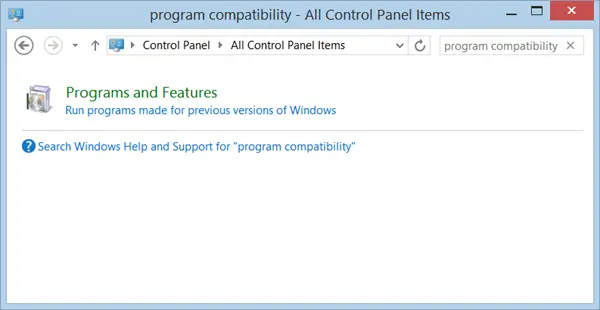
Click on it to open the Windows Program Compatibility Troubleshooter.
If you use it frequently, you can also create a Program Compatibility Troubleshooter desktop shortcut.
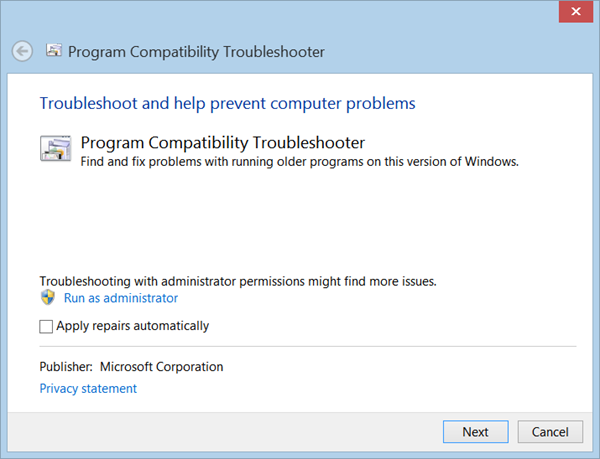
Click Next or the Advanced option, if you don’t want things to be fixed automatically. Windows will try to detect programs you may be facing problems with.
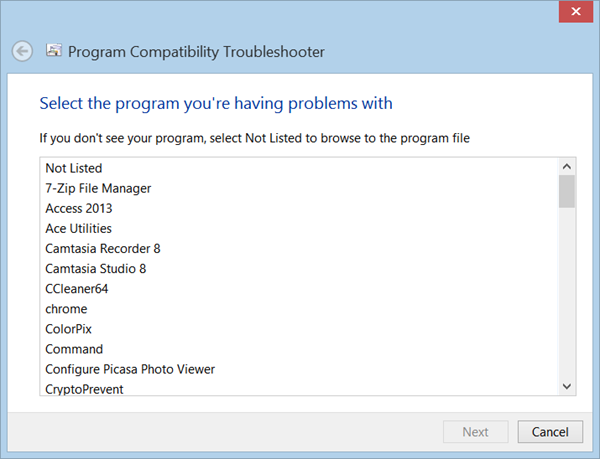
Select the one you want and click Next.
The Troubleshooter will analyze and present a list of problems.
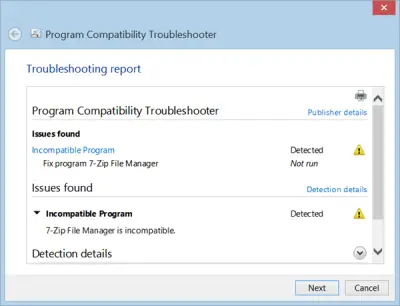
Click on Next to fix the problems.
Windows 11/10 or Windows 8.1/7 will try to resolve the issues and or alternatively offer you another recourse.
In this way, you will be able to identify the issues and help you make old programs work using Compatibility Mode.
Read: