
Microsoft no longer provides stand-alone installers for Windows Live for direct download. You have to download it and other Live products through Windows Live Installer. Once Windows Live Installer has finished downloading and installing its software, you can find & save Windows Live software installation setups.
In Windows Vista, browse to:
C:\Program Files\Common Files\WindowsLiveInstaller\MsiSources
Here you will be able to see the WLM and other Live product installers too.

This is the location for the Live installation, and you will find all those you have installed.
The names may appear as follows:
Windows Live Sign-In Assistant
Install_{AFA4E5FD-ED70-4D92-99D0-162FD56DC986}.msi
Windows Live Mail
Install_{EDB619FD-4E71-403C-8E99-DFC9CF9DD345}.msi
Windows Live Messenger
Install_{508CE775-4BA4-4748-82DF-FE28DA9F03B0}.msi
Windows Live Toolbar
Install_{C6876FE6-A314-4628-B0D7-F3EE5E35C4B4}.msi
Windows Live Writer
Install_{9176251A-4CC1-4DDB-B343-B487195EB397}.msi
Windows Live Photo Gallery
Install_{AA436FBD-2595-479B-8DDE-E9C36F50D99D}.msi
Back up the one’s you want !
You may have to uncheck ‘Hide protected OS files’ from Folder Options, to be able to see this folder.
However, in Windows 7 they are stored in separate folders.
Uncheck ‘Hide protected OS files‘ from Folder Options, to be able to see this folder.
Once Windows Live Installer has finished downloading and installing Messenger, browse to
C:\Program Files\Common Files\Windows Live\.cache
assuming your Windows 7 has been installed on C drive.
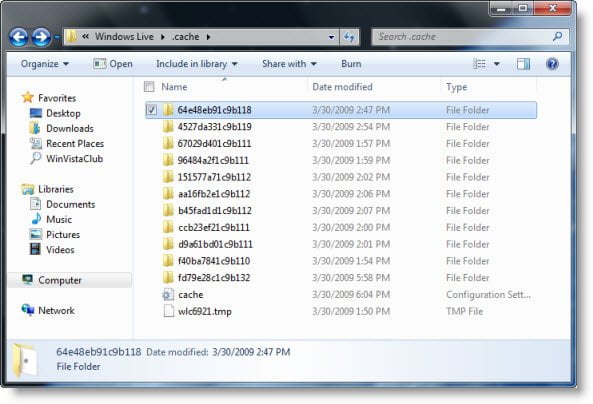
In the .cache folder, you will see many sub-folders. Each folder contains a Live installer. The installers can be easily be identified by their names.
For example:
64e48eb91c9b118 folder contains Messenger
fd79e28c1c9b132 folder contains Mail
Backup the one’s you want.

